
Everything about YappyChat
Set it up, learn your way around, and get the most out of it. The guide follows the order you will meet things: set up, chat, moderate, stream, make it yours, then lock it down. Every picture is a real screenshot of the app, with sample chat.
- Perks have a real checkout: sign in with Twitch on the website and pay by card, Apple Pay, Google Pay or PayPal. The heart button in the app opens the shop already signed in. Tips no longer come with perks.
- Fewer permissions at login. Tick I only chat and don't moderate on the login screen to skip the moderator permissions. Extra tools still ask for their one permission when you open them, and Settings > About can drop every optional one.
- Keyboard moderation: Alt+Up selects the newest message, Alt+Up/Down move, then D delete, T time out, B ban, W warn, R reply, Enter opens the card, Escape goes back to typing.
- Your login is checked every hour (Twitch requires this). If Twitch says it is no longer valid, YappyChat logs you out instead of failing quietly. Starting without internet keeps your login and retries.
- Diagnostics and crash reports: Settings > Account shows the local diagnostics log (tokens removed) and lets you switch crash reports off.
Earlier updates
0.12.2.
- Chats snap around the stream from any side, even when only one chat is open.
- Choose any split layout from the grid button in a chat's header, including one big chat with four small ones. Drag chats to reorder them.
- Yappy lives beside the Chat button, as tall as the button. Drag him out and the message bar takes the full width.
- A message box in every chat: Settings > Chat > Message box in every chat. The main bar stays.
- GIFs, pinned messages and drops show in chat, each with a dismiss button and a switch in Settings > Chat. Paid (Hype Chat) pins show as they arrive. As a moderator you also see messages pinned by other moderators, checked every 45 seconds. Drops notices use the optional
user:read:chatpermission, which Settings > Security can ask for. - The Community panel has an arrow button to move it above, below, left or right of the chat.
- Click an activity icon again to fold the panel away.
- Everything sits above the stream window except the chats themselves.
0.12.1. Each holiday has its own entrance (snow, bats, a running turkey, flying eggs, a jet with red, white and blue trails, hearts and fireworks) and its own animated Yappy skin. The message box reads Send message in and the channel name. Suggest a feature now reaches the developer directly. Animated Twitch emotes move in chat. Settings has fewer sections: Filters (AutoMod display, cover words, ban list), Saved messages (macros and greetings), Announcements under Moderation and Logs under Chat, and AutoMod settings and blocked terms share one Chat filters window. In 0.12.0: Streaming together is shown automatically, entrances are visible to everyone and there are eight new name effects, Settings and the emote lists open over the stream window, emote suggestions can be switched off, Yappy activity links open the channel, and there is a Whisper button, per-channel mute and saved layouts. Anonymous usage statistics are described in the privacy policy. In 0.11.0: Only the chats you have open notify, sound and log (switch to All tabs in Settings > Chat), the Community pane resizes by dragging its edge (double-click resets), tabs and chat headers snap beside, above or over each other, typing letters completes chatter names, alert sounds never overlap and have a cooldown, Yappy activity can be dismissed, and Ctrl+1 to 9, Ctrl+Tab, middle-click and Ctrl+Shift+T switch, close and reopen tabs. In 0.10.1: The Community list now splits your chat instead of floating, tools can snap above the activity panel, streamer-only tools are hidden from mods, and the player's Clip button opens Twitch's clip page. In 0.10.0: A Community list that shows everyone in chat (not only people who spoke) and refreshes every 15 seconds, up to four streams at once, AutoMod and Mod actions that follow the chat you are in, and a perks cart whose prices are fixed by the server and whose tips are checked automatically. Also in 0.9.0: Polls, predictions and a user list, a streamer dashboard, /alert from your mods, /search, conversation view, undo in the mod feed, a one-click greeting for first-timers, the pencil to edit the title and game, an icon-only activity rail, a single Themes menu with Autumn, Winter, Summer, Spring and Minimal, up to six chats in split view, I'm not a Moderator, a passcode lock and start with Windows. Each one is covered in its own section below.
1. Getting started
The first time you open YappyChat, a short tour walks through the main parts of the window. Replay it any time from Settings > About or the command palette.
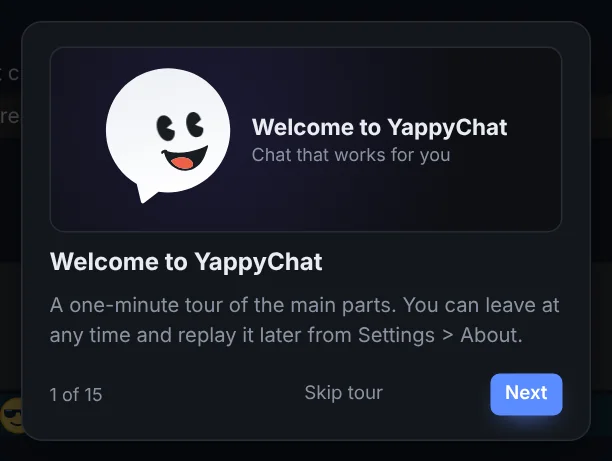
YappyChat talks to Twitch using your own Twitch developer application. You create it once, which takes a couple of minutes, and it keeps you in control of what the app can do.
- Install YappyChat. Download it from the download page and run the installer. If Windows says "Windows protected your PC", click More info then Run anyway: that warning appears for new apps that aren't yet widely downloaded. It updates itself in the background after that.
- Create a Twitch application. Go to
dev.twitch.tv/console, choose Register Your Application, give it any name, set the OAuth redirect URL tohttp://localhost:3000, pick the category Chat Bot or Other, and create it. - Copy the Client ID. Open the app you just made and copy its Client ID. The Client ID is not a secret password, but YappyChat hides it by default anyway; tick the eye button to show it.
- Paste it into YappyChat and press Continue with Twitch. You only do this once.
Logging in and permissions
Press Continue with Twitch and approve the permissions. One login covers chat and the stream window, so you never sign in twice.
- Everyday permissions are asked for at login: read and send chat, moderate, AutoMod, announcements, followers, your emotes and whispers. YappyChat can not run without them.
- Optional permissions only exist so one tool can work: the user list, banned and moderator lists, AutoMod settings, shoutouts, clips, polls and predictions. YappyChat asks for each one the first time you open that tool, explains why, and nothing happens until you say yes.
The full list, with a plain reason for each and whether it is granted, is in Settings > About.
Your login token is stored encrypted on your computer using Windows' own protection, and is removed (and, by default, revoked with Twitch) when you log out. See Security.
Adding and arranging channels
Press + next to the tabs. Type a name, paste a Twitch link, or add several at once separated by commas, like shroud, xqc, pokimane. You can have up to 50 channels open.

- If there are more tabs than fit, arrows appear at the ends of the tab bar to scroll them. Ctrl+K opens a quick switcher, and YappyChat reopens on the chat you were last in.
- Each tab has a short line along its top showing the service. Twitch is purple. Kick (green) and YouTube (red) will get their own colours when they arrive; both are coming soon.
- A small red dot beside a channel name means they are live.
- When something happens in a channel you are not looking at (a mention, an AutoMod hold, a first-time chatter), its tab flashes until you open it.
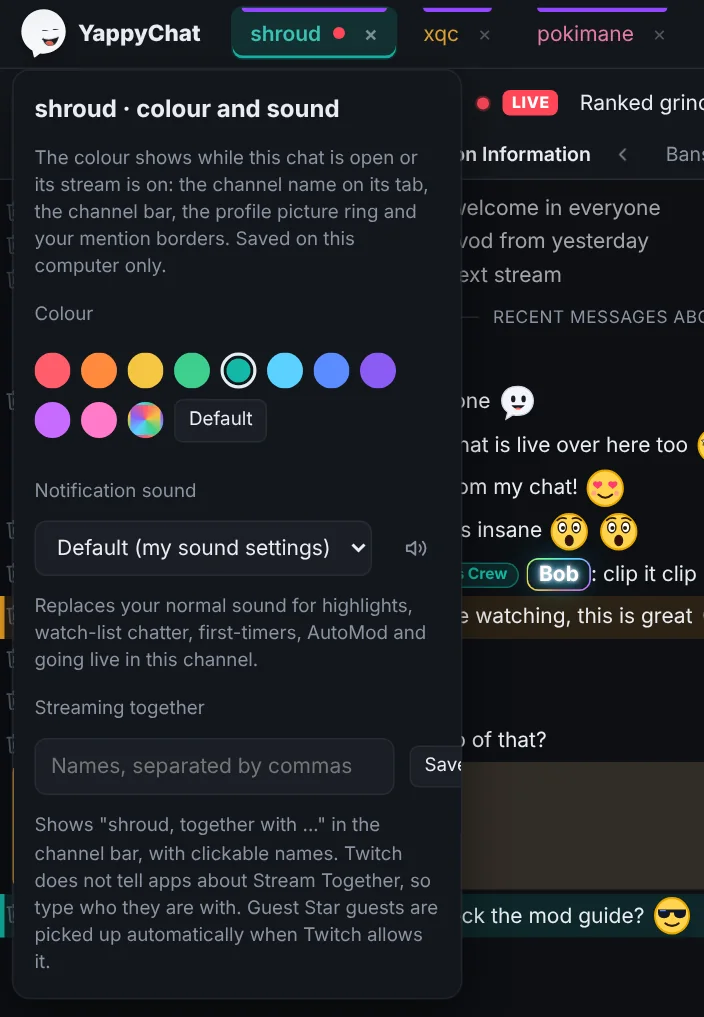
- Right-click a tab to pick its colour and sound (see below).
Moving tabs around
Drag a tab to reorder it. While you drag, a bright separator line shows exactly where the tab will land, between two tabs, so it is clear you are moving it between things and not onto one.

Tab colours and sounds
Right-click a channel tab to give it a colour and its own notification sound. The colour is used for the channel's name in its tab, in the channel bar and in split-view headers, for the ring around the streamer's picture, and for the border on mentions in that chat. It is saved on your computer only.
Split view
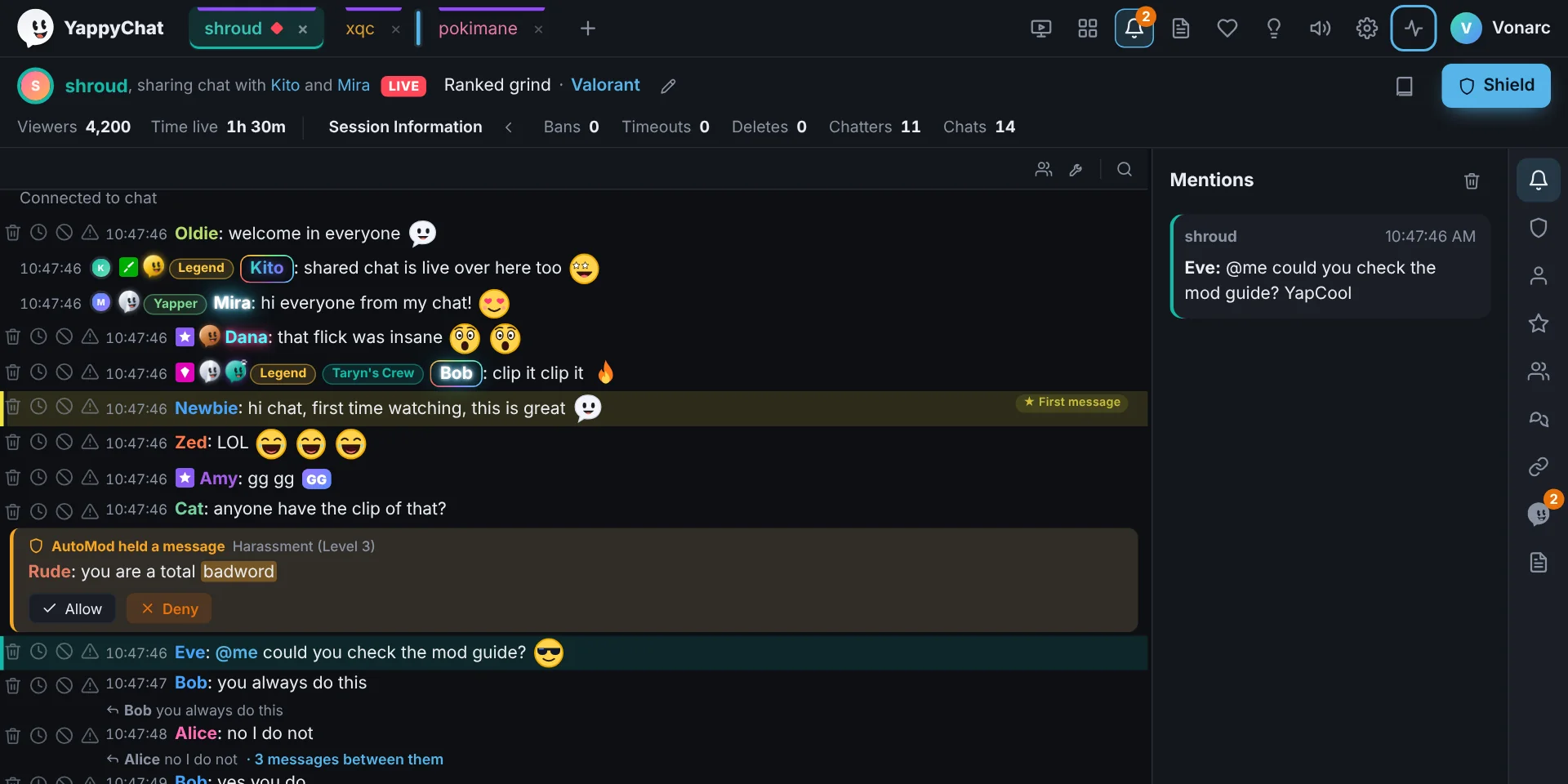
The grid button shows up to six panes at once. Chats and streams share those six: five chats when one stream is snapped beside them (a floating stream does not count), or fewer chats if you add more streams (see Stream window). One to three sit in a row, four make a 2×2, and five or six use three columns, with an odd one out stretching across the row. Drag a pane's header to reorder it and its edge to resize.
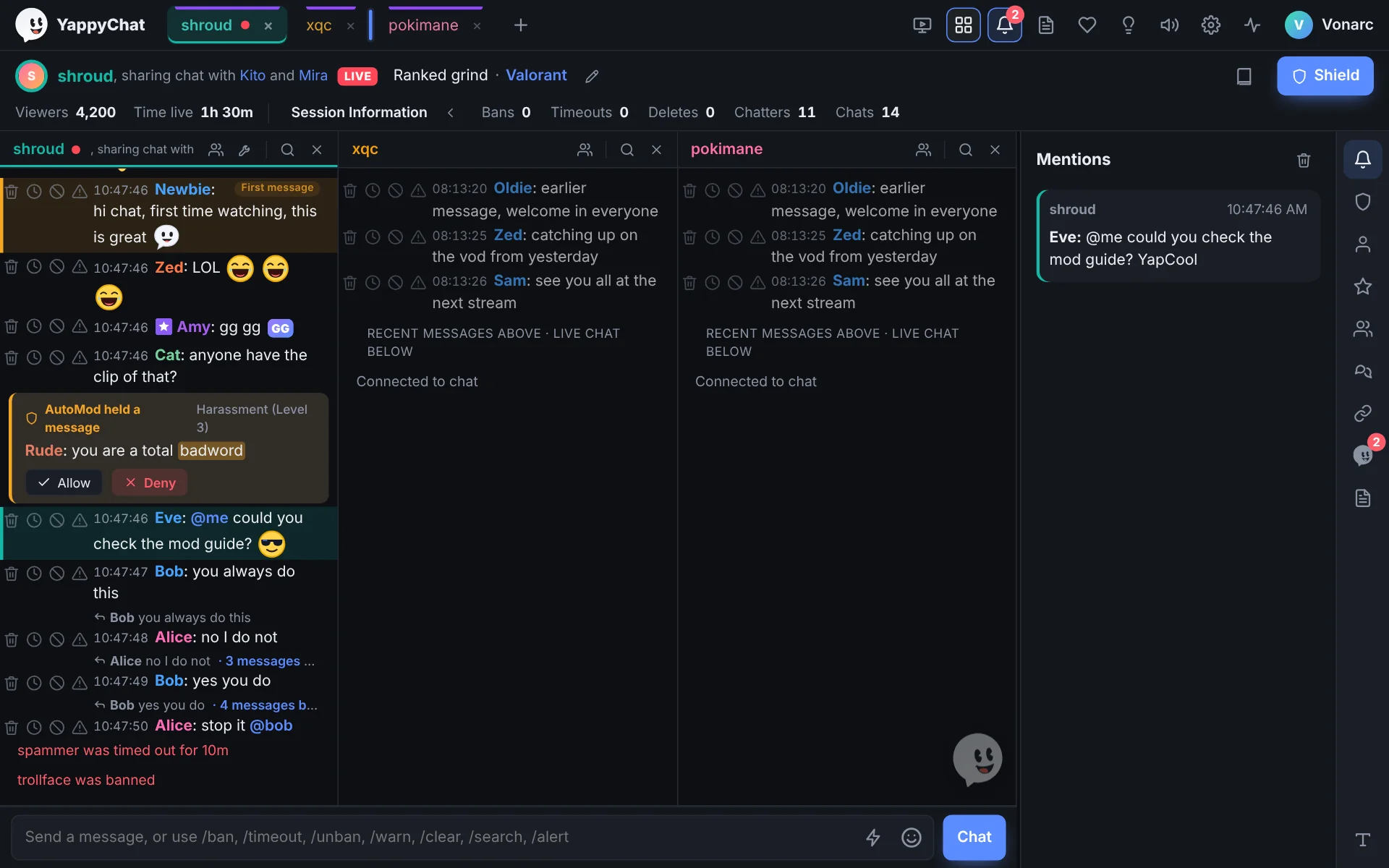
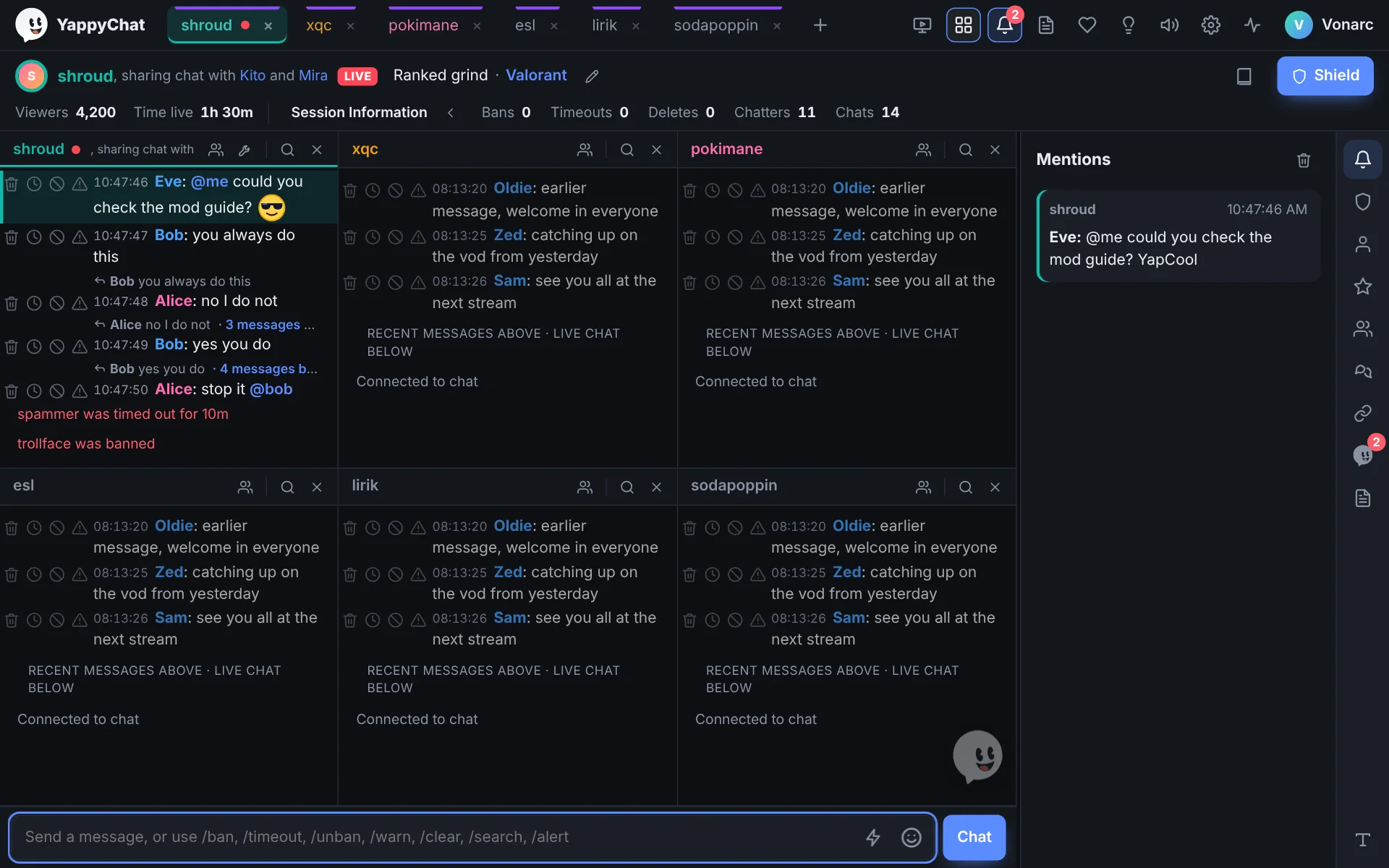
Any layout you like. The grid button in a chat's header lists the layouts for the number of chats you have open: Automatic grid, Side by side, Stacked, and One big on the left, right, top or bottom, so five chats can be one big and four small. Drag a chat by its grip (⋮⋮) onto another to swap or place it, or choose Make [channel] the big one from that menu. If you want a message box in every chat instead of one shared bar, turn on Settings > Chat > Message box in every chat; the main bar, where Yappy lives, stays.
The channel bar
Under the tabs, the bar shows who you are watching and how the stream is doing.

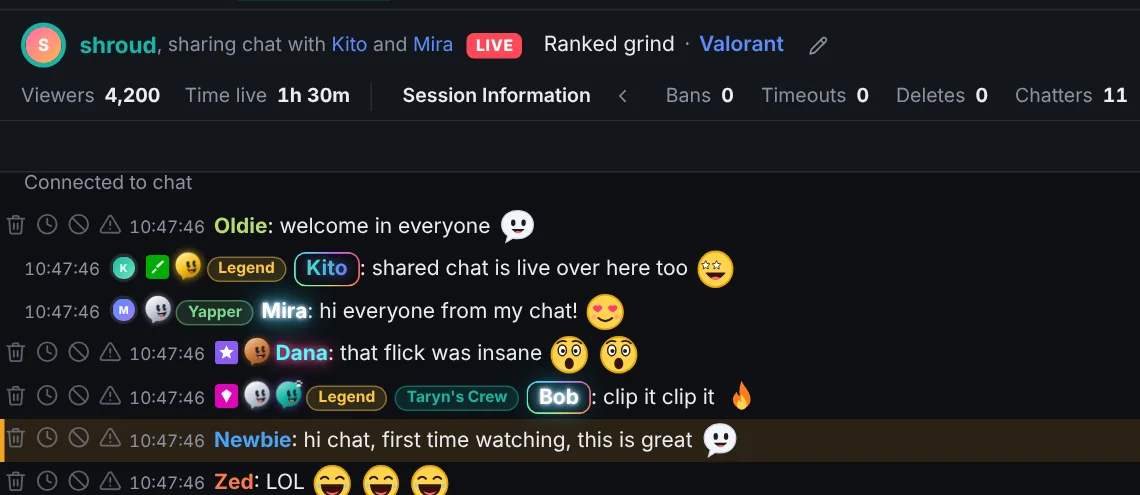
- LIVE is a badge on its own, next to the name, so you can see at a glance whether the stream is on. (The little dot on the tab is the same signal from a distance.)
- Viewers and Time live come first on the second row.
- Session Information shows bans, timeouts, deletes, chatters and chats since YappyChat opened. Press the arrow beside it to hide or show the counters. You can choose what it counts in Settings > Session.
- The pencil edits the title and game (see Editing the title and game).
- The book opens the channel's notes and rules, and Shield opens the chat modes menu.
Streaming together and shared chat
Twitch starts a shared chat session when streamers use Stream Together, and everyone's messages appear in all of those chats. YappyChat shows this the way Twitch does:
- The channel bar reads "Streamer, streaming together with Kito and Mira". Click a name to add that channel or switch to it.
- Each message from another channel has that streamer's picture beside it. Turn this off in Settings > Chat > Shared chat pictures.
- Messages from other channels have no moderation buttons, because you are not moderating there. First-message labels only show for people in your own channel.
2. Sending messages
Type in the box at the bottom and press Enter. The box understands a few shortcuts:
- ↑ and ↓ bring back what you sent before. It remembers your last 10 messages, only for this session. They are never saved to disk.
- Tab completes emotes and
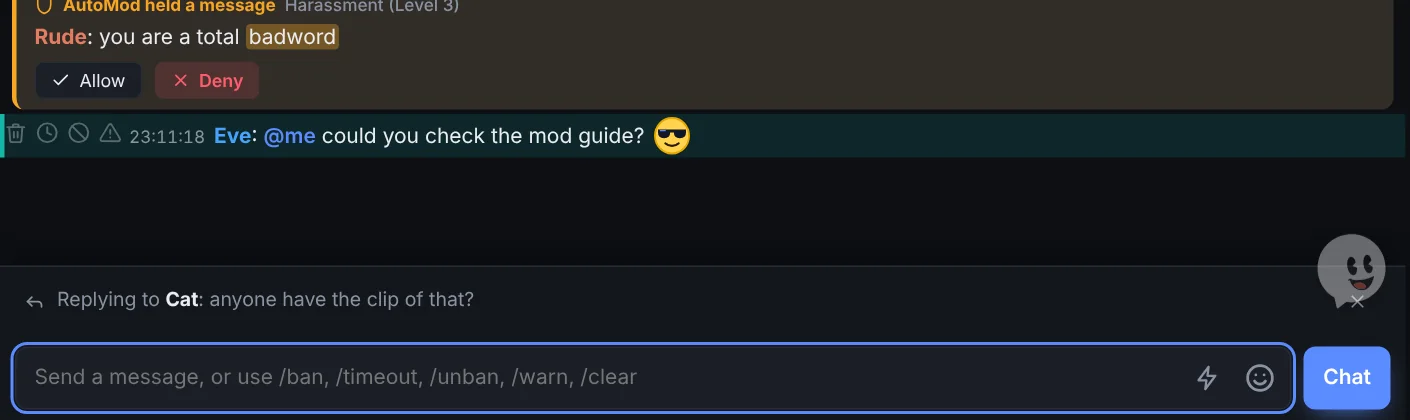
@names. Type;and the start of a macro's name, then Tab, to fill in a macro. - Replying shows a small bar just above the message box. It floats over the chat instead of pushing it up, so nothing jumps while you type.
Commands: /search and /alert
The message box takes Twitch's usual commands (/ban, /timeout, /unban, /warn, /clear and so on) plus two of YappyChat's own.
/search
Searches the messages YappyChat has seen in the chat you are in, and opens the results in a small window. Click a result to jump to it in the chat.
| Type | Finds |
|---|---|
/search clip | Messages containing "clip". |
/search @cat | Everything cat said (and from:cat works too). |
/search @cat clip | Messages from cat containing "clip". |
/search "exact phrase" | The words in that order. |
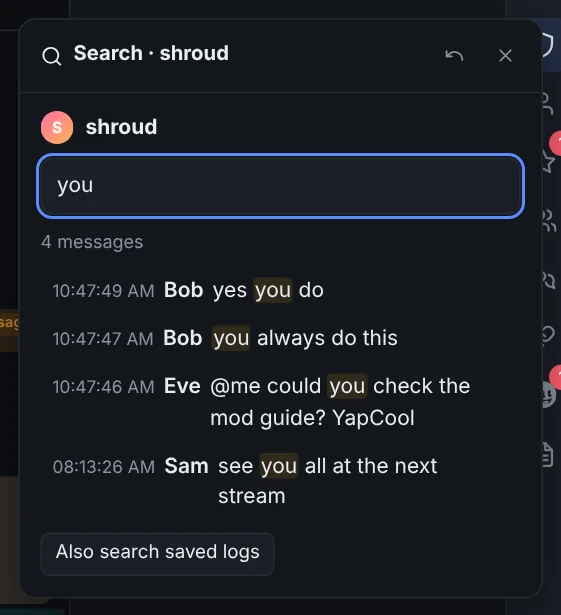
To search every open chat at once, press Ctrl+Shift+F. Ctrl+F searches the chat you are in.
/alert
For moderators: /alert chat wants you to check the game audio sends a message to the streamer that takes over their screen. See Alerts from your mods.
Emotes
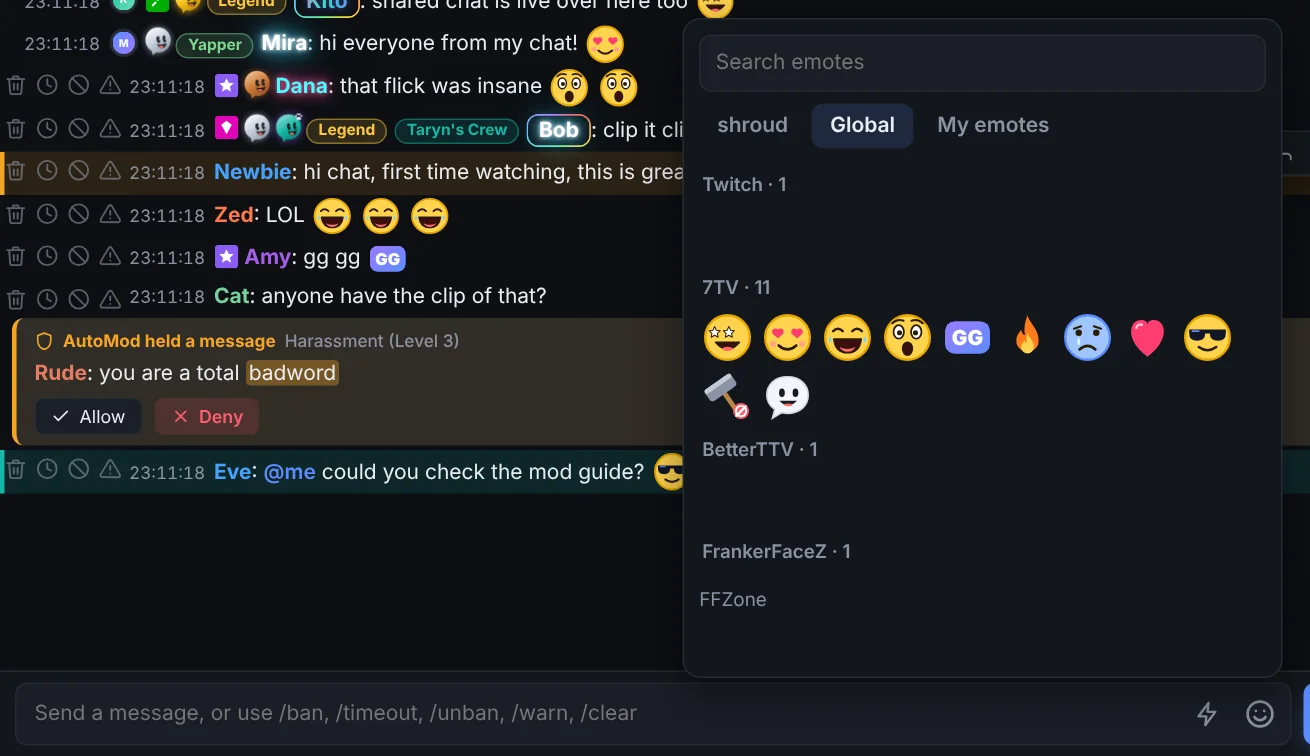
YappyChat loads Twitch, 7TV, BetterTTV and FrankerFaceZ emotes for each open channel, and refreshes them when you switch to a chat and every few minutes. In the picker, My emotes is grouped by channel like Twitch's own picker, and emotes you cannot use in that channel are dimmed. Twitch emotes that anyone uses in chat always appear. If emotes look wrong, Settings > Emotes shows what loaded and lets you reload and test them.
Macros
The bolt button next to the message box lists your saved messages. Pick one to fill the box, or send it straight away if you ticked Send. {channel} and {me} are filled in.
- Save a message as a macro: point at any message in chat. The toolbar that appears has reply, pin, a bolt, and copy. The bolt (between pin and copy) saves that message's text as a macro after you name it.
- You can also make and edit macros in Settings > Macros.

Recent messages
When you open a chat, YappyChat fills it with the latest messages (50 to 500, your choice) so it is never blank, even when the stream is offline. They appear slightly faded above a divider; live chat continues below it. They do not trigger sounds or mentions.
Whispers
Whispers sent to you appear in the Whispers tab of the activity rail, and Yappy tells you when one arrives. Reply right there.
3. Message buttons
You must be a moderator (or the broadcaster) in a channel for these to work there. If you are not a moderator anywhere, I'm not a Moderator hides all of this.
| Tool | How |
|---|---|
| Delete, timeout, ban, warn | The icons beside each message (always visible, hover-only, or hidden in Settings > Chat). The timeout length is set in Settings > Moderation. |
| Hover hotkeys | With hover hotkeys on, point at a message and press D, T, B or W. |
| Reply, pin, save as macro, copy | A small toolbar when you hover a message. Pinning uses Twitch's /pin command and depends on what Twitch allows. |
| Warnings | Choose a preset or write a reason; Twitch shows it to the chatter. |
User cards
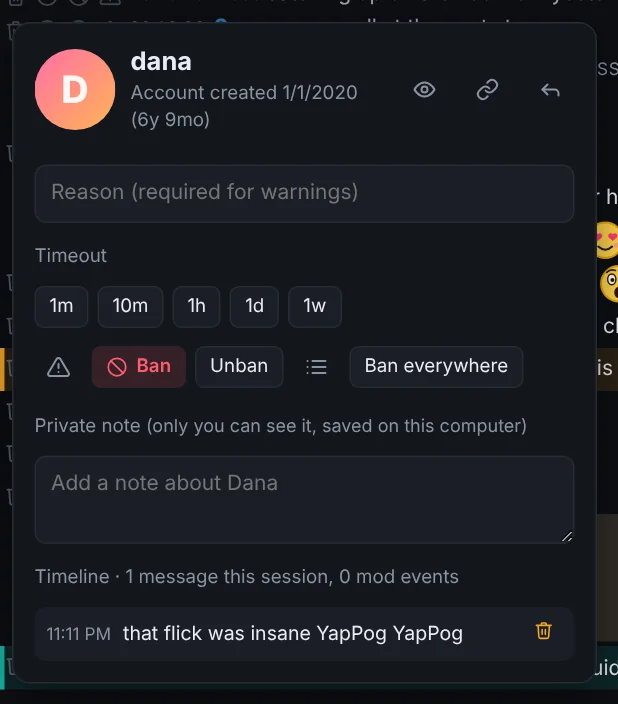
Click a name to see account age, follow date (when Twitch lets you see it), recent messages, private notes and a watch-list button. Under the notes is a timeline of their messages this session plus every moderation event for them across all your channels: bans, timeouts, deletes, warnings, AutoMod holds and unban requests. Ban everywhere bans them in all your channels where you moderate. Notes and the watch list are stored only on your computer.
Conversations
When two people reply to each other, the reply line shows "3 messages between them" (the count grows as they carry on). Click it to open the whole back-and-forth in one window, both sides' messages in order, so you can see who started it and who is escalating before you decide anything.
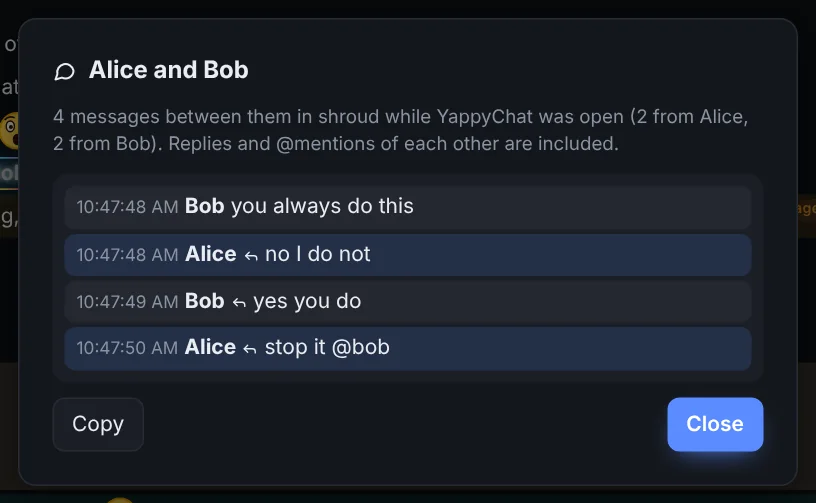
It follows replies and @mentions of each other while YappyChat has been open, and it only appears once two people have actually answered each other.
The activity rail
Open the activity panel with the bell. Its tabs sit in a slim icon rail on the right edge; the section you chose fills the space beside it, with its name at the top. Click the open icon again to fold the panel away, so only the rail shows, and click any icon to bring it back.
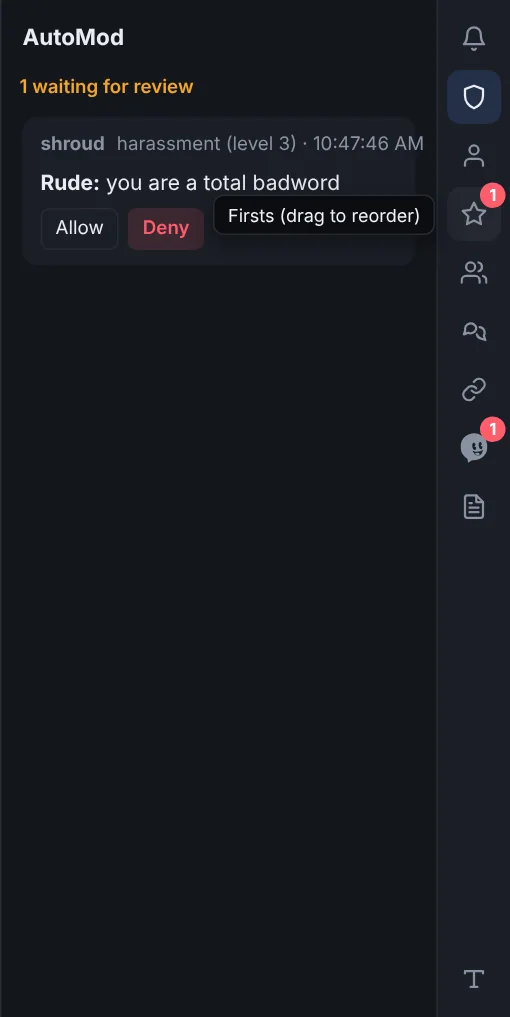
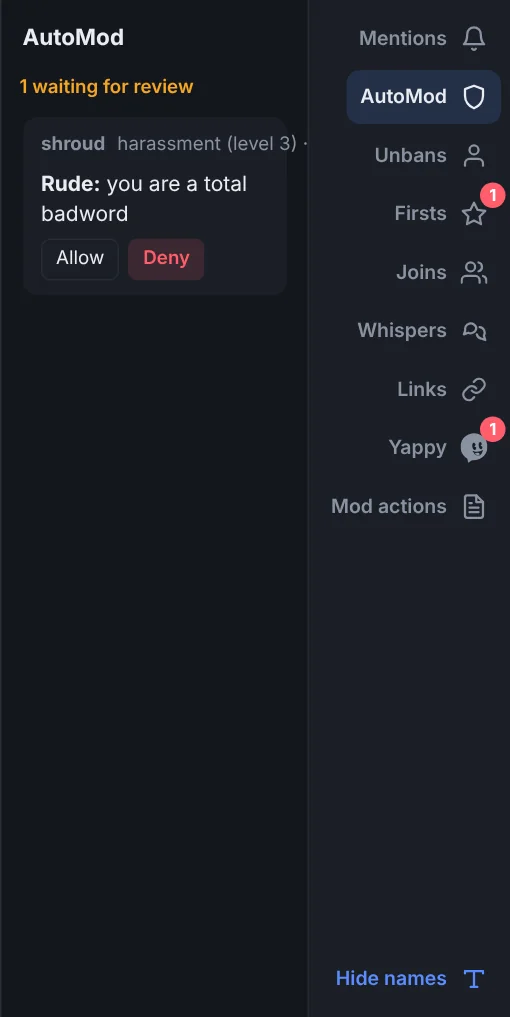
- The T button at the bottom of the rail shows or hides the names beside the icons. When names are shown, the rail grows to the left and the list narrows a little; the panel itself does not change size.
- Drag the panel's left edge to resize it (double-click to reset). Drag the icons to put them in your order.
- Each tab keeps its own count until you open it.
- Click Yappy in the bottom corner to jump straight to his tab.
| Tab | What it shows |
|---|---|
| Mentions | Messages that mention you, match a highlight, or come from someone on your watch list. Click one to jump to its channel. |
| AutoMod | Messages held by AutoMod, with Allow and Deny. Live while YappyChat is open. |
| Unbans | Pending unban requests for the chat you are in, newest first. Type a name in the search box to find one. The list is checked with Twitch each time you open it, switch chat or restart, and the circular arrow checks again straight away. Approve or Deny from here. |
| Firsts | People sending their first message in a channel, with greet, delete, timeout and watch buttons. Entries disappear after 2 minutes so the list stays short in big channels. |
| Joins / parts | Who joined and left the chats on screen, checked every minute. They are still saved in the logs. Twitch may not report these in very large channels. Switch it off in Settings > Chat. |
| Whispers | Whispers sent to you, with a reply box. |
| Links | Links and clips posted by viewers (not moderators or VIPs) in channels you moderate. Open, delete the message, time the sender out, mark it fine, or allow the whole site. Turn it off in Settings > Moderation. |
| Yappy | Every notification in one place, with the time: things Yappy said, who went live, mentions and alerts. Clicking Yappy opens this tab. |
| Mod actions | Bans, timeouts, deletes and chat changes in channels you moderate, with who did each one, and an undo button. |
Mod actions and undo
The Mod actions tab lists what happened in the chat you are looking at, straight from Twitch's moderation feed. Switch chat and the list switches with it (the weekly totals are kept per channel too). Each card shows the kind of action, the channel, the time and who did it. Columns and counts line up, in the feed and in the weekly table.
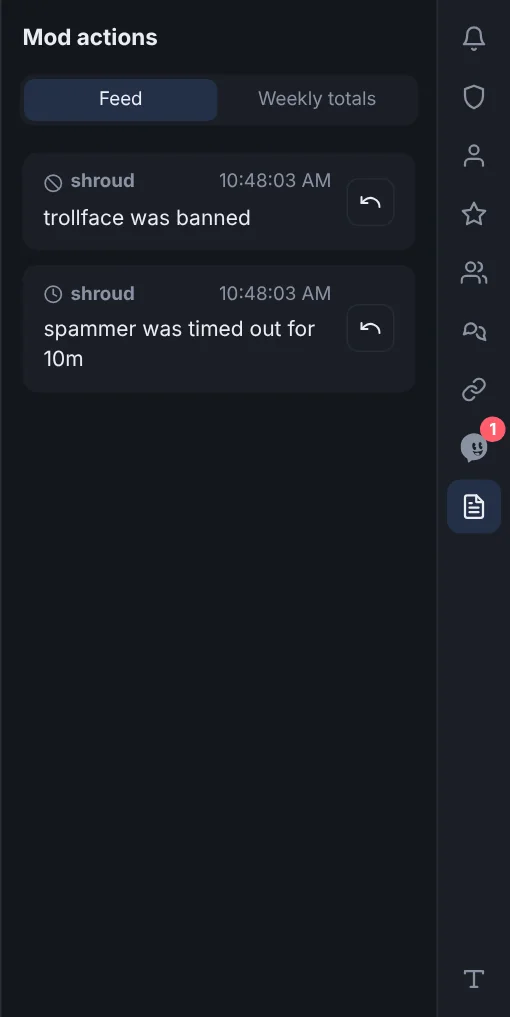
- Undo lifts a ban or a timeout (it is the same as
/unban). It appears on bans and timeouts only, and only where you are a moderator. - Weekly totals shows bans, timeouts, deletes and warnings per moderator for each week (Monday to Sunday), as icons (hover one to see what it is), and copies as a report. It counts what YappyChat saw while it was open.
Firsts and greetings
The hand button on a first-time chatter sends them a greeting as a reply to their message. Click it and pick one of your saved greetings, or Surprise me for a random one. Once greeted, the hand stays lit so the next moderator knows.
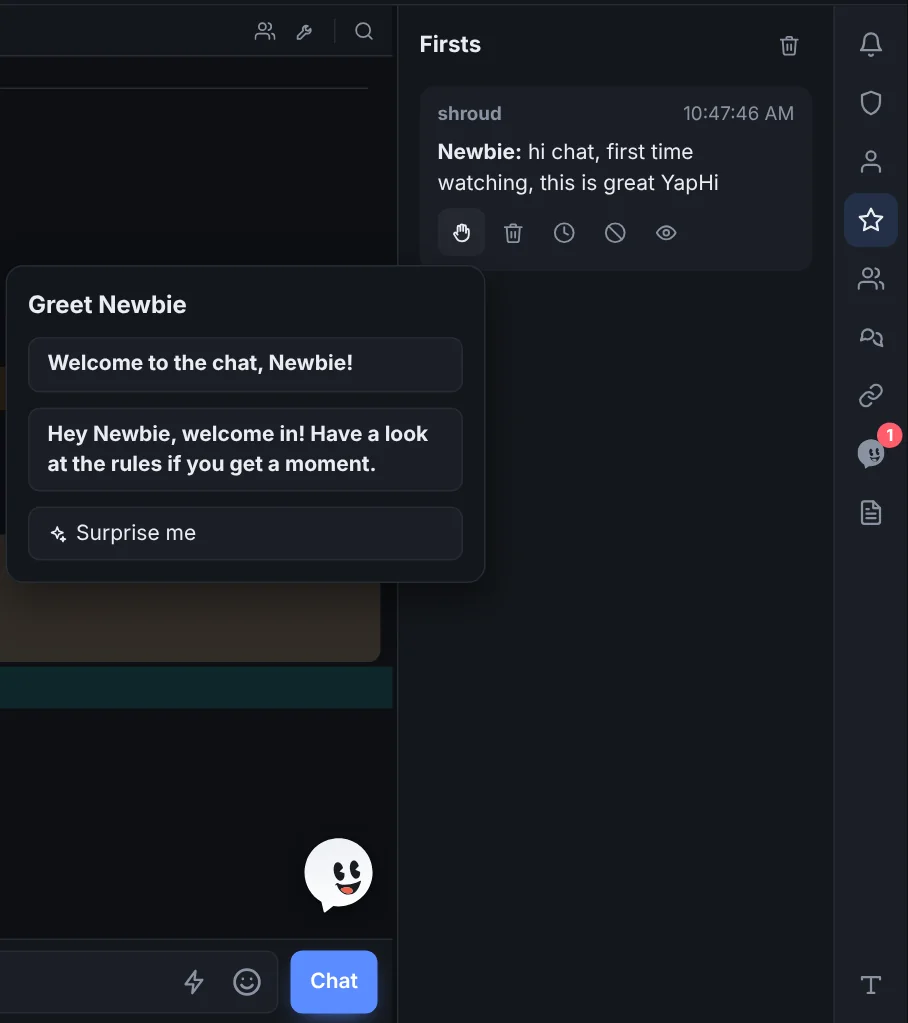
Write your greetings, one per line, in Settings > Saved messages > Greetings. {user} becomes their name and {channel} the channel.
AutoMod
The AutoMod tab shows the messages held in the chat you are in, so a busy second channel never mixes into the first. Switch chat to review the other one.
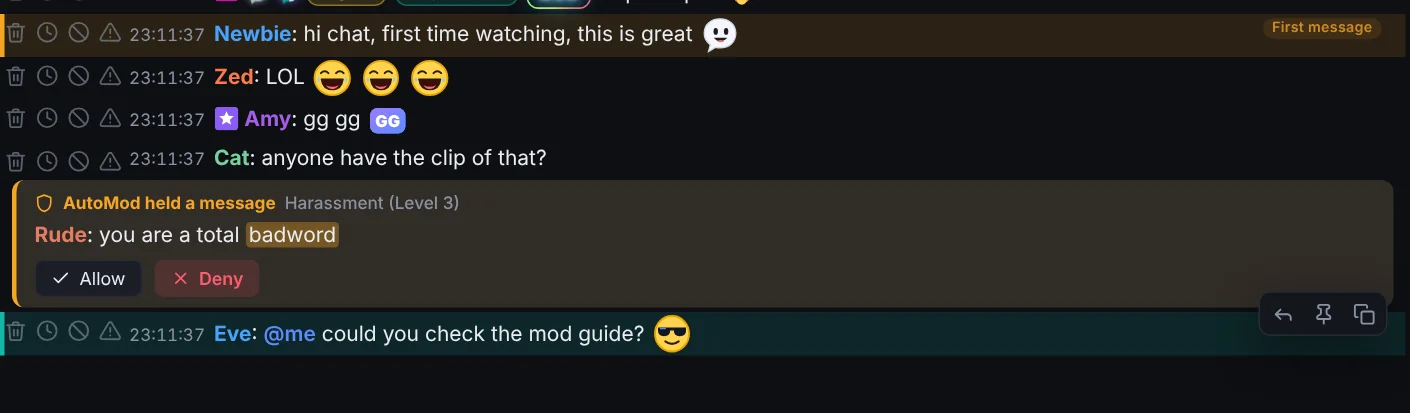
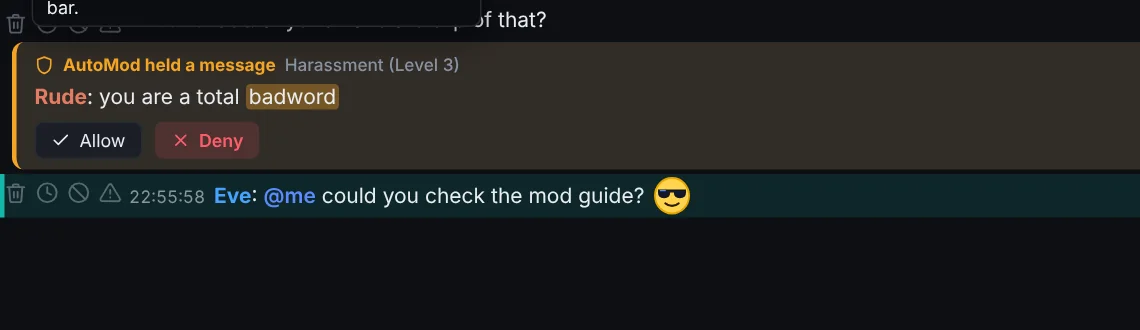
If you moderate a channel, messages held by AutoMod appear in the chat with Allow and Deny and the flagged words marked, like Twitch's own mod view. If another moderator deals with it first, the line updates. In Settings > Moderation you can keep AutoMod, baseline or blocked-term holds out of the chat so they only show in the AutoMod tab. The AutoMod levels themselves can be changed from the more tools menu.
Polls, predictions, Community and more
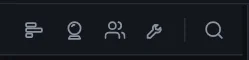
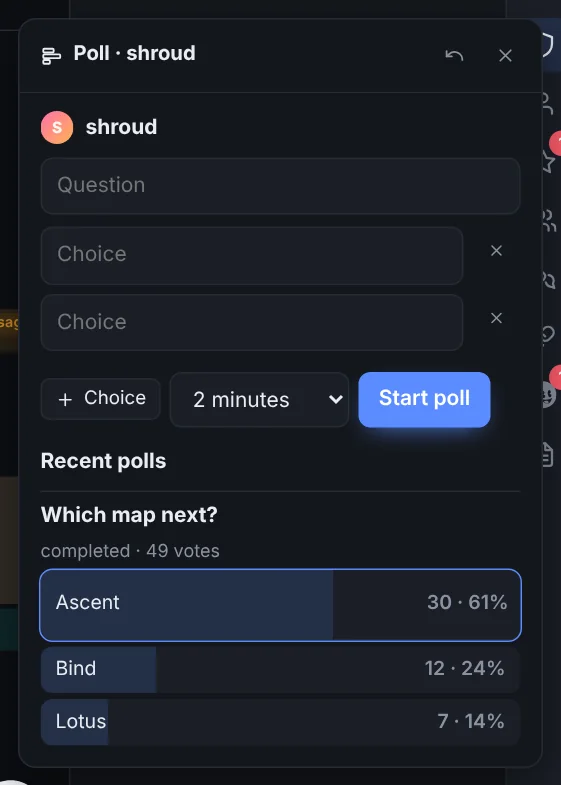
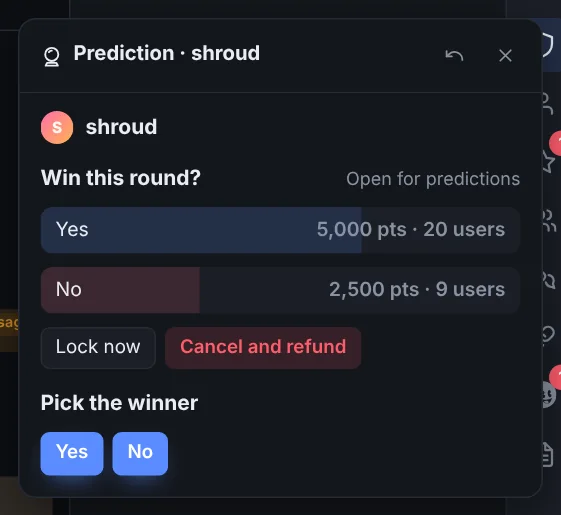
Next to the search button in each chat's header are small tool icons. Each opens its own little window beside the chat, so you can keep chatting while it is open, and you can have several open at once.
Polls
Predictions
Community (who is in chat)
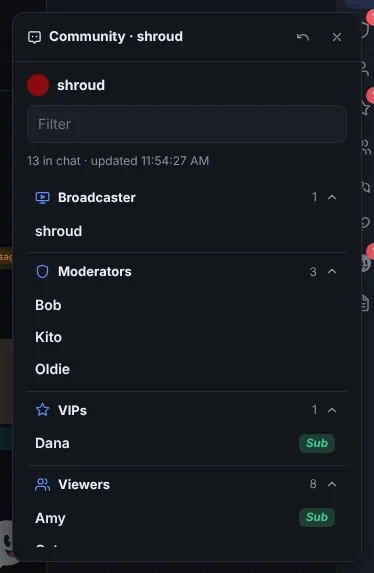
It lists everyone connected to chat, including people who have not said anything, so you can find someone to moderate who has been quiet. It refreshes by itself about every 15 seconds. Twitch only hands the complete list to the streamer and moderators (and needs one extra permission, which YappyChat asks for the first time you open it). If you are not one of them, the window shows everyone YappyChat's chat connection has been told about plus everyone who has spoken, and says plainly that it can miss people in a very large chat. A very large channel shows the first few thousand names.
The Community button splits the chat you are in instead of floating over it: the list takes half of the pane, beside the chat when the pane is wide and above it (pushing the chat down) when it is tall, so chat stays in view. Press the button again to close it. The small arrow in its title bar moves the list above or below the chat, or to the left or right when the layout is horizontal.
More tools
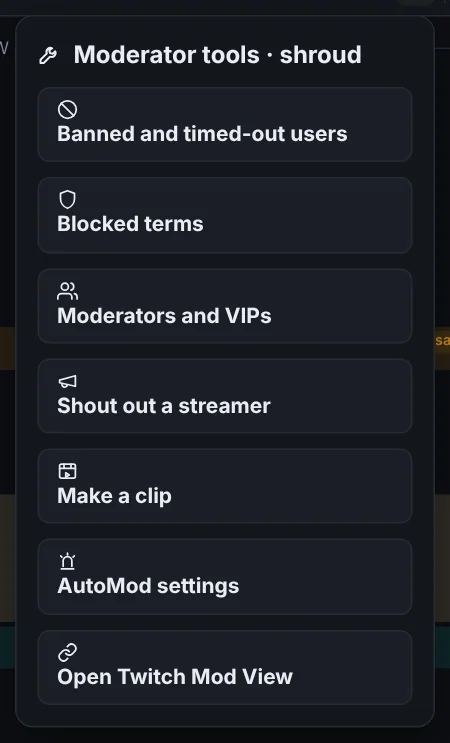
- Banned and timed-out users: search the list and unban from it.
- Moderators and VIPs: see who has the roles.
- Shout out a streamer and Make a clip. In your own channel the menu also has Start a raid, Run an ad and Add a stream marker.
- Chat filters: AutoMod levels and the channel's blocked terms in one window.
- Open Twitch Mod View and Open the Creator Dashboard: shortcuts to Twitch's own pages.
Snap tools where you want them. Each tool window has a pin button. Press it, or drag the window over the right-hand column, and it snaps above the activity panel. YappyChat remembers which tools you snapped. Press the pin again to pop it out. Choosing the tool again, or its X, closes it. Tools that only the streamer can use (polls, predictions, raids, ads, markers, the title pencil and the streamer dashboard) are hidden from moderators.
The first time you use a tool that needs a permission you have not given, YappyChat explains what it is for and asks. You can say no and nothing changes.
Editing the title and game
In your own channel, a small pencil sits next to the stream title and game in the channel bar. Click it to change either one. Moderators do not see it, because Twitch lets only the streamer (and editors) do this through apps.
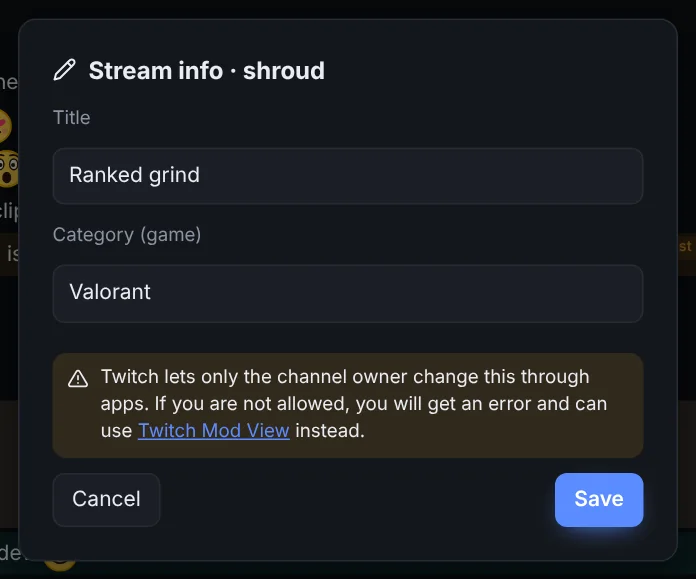
Twitch decides who may change these per channel. If your account is not allowed, you get a clear message saying so and a link to Twitch Mod View, instead of nothing happening.
Channel notes and rules
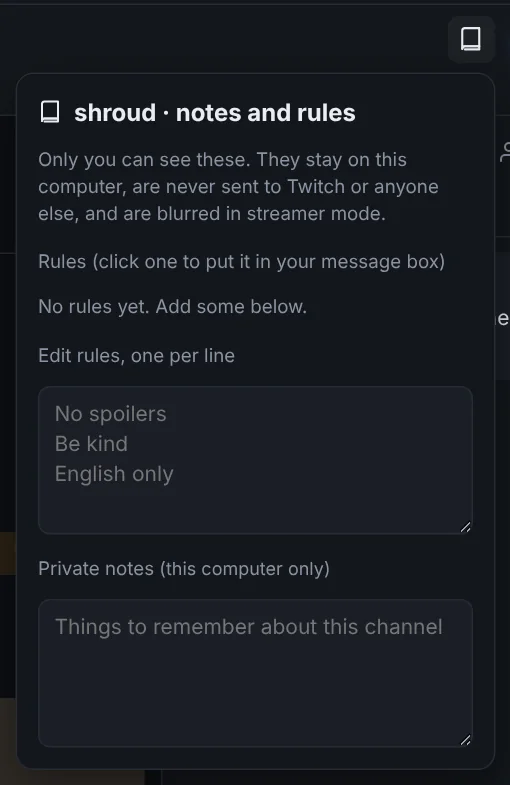
- Rules: one per line. Click a rule in the popover to put it straight into your message box, so repeating "No spoilers" takes one click.
- Notes: anything you want to remember about that channel.
Tip: save your mod guide link here. Most channels have a guide for their moderators (a Google doc, a Notion page, a Discord post). Paste the link into the notes for that channel and it is one click away whenever you are unsure. Do the same for the timeout lengths your team agreed on.
Highlights and blocklists
Highlights match the exact word, ignoring case. Mod highlights "mod" but not "mode". Add * as a wildcard: Mod* matches "mode", "moderator" and "mods". Tick regex on a row to use a regular expression instead. Each highlight has its own colour and sound.
Filters (Settings > Filters) hold two lists, next to the AutoMod display options and a button for the channel's Chat filters window. The blacklist is words or names you would rather not see: they are covered with a box and revealed when you hover. The shared ban list is people you want banned wherever you moderate: if someone on it speaks in a channel you moderate, Yappy offers to ban them (or YappyChat does it automatically if you switch that on). Add people from their user card. Both lists are blurred while streamer mode is on, stay on your computer, and use the same matching: exact, case-insensitive, * as a wildcard and /pattern/ for a regular expression.
Raids, Shield Mode and announcements
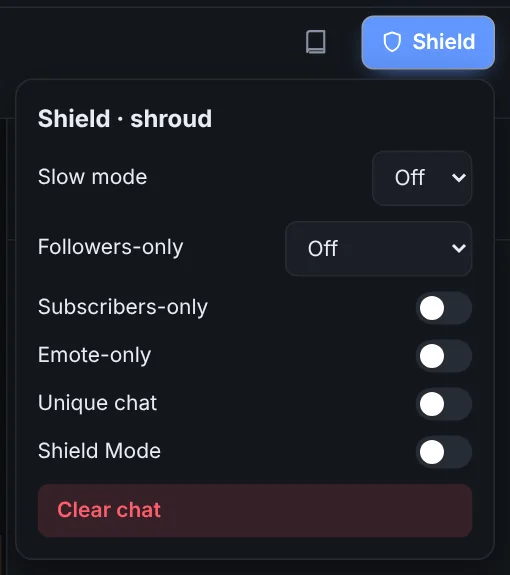
- Shield menu. The Shield button in the channel bar controls chat modes and Shield Mode.
- Raid banner. When a raid arrives, a banner appears over that chat with one-click Shield Mode, Followers-only 10m and Emote-only. Yappy also tells you. If you turn Shield Mode on, you are reminded 15 minutes later to turn it off.
- Scheduled announcements. Settings > Announcements posts Twitch announcements on a timer, only while YappyChat is open, the channel's tab is open and you moderate there. You can limit them to while the stream is live and to after a number of chat messages.
- Command palette. Ctrl+Shift+P and type: switch channel, run a macro, Shield Mode, chat modes, open a setting.
4. The streamer dashboard
If you stream, the pulse button next to your name and picture opens a dashboard of how your stream is going. It fills in while you are live and keeps the last session so you can look back after.
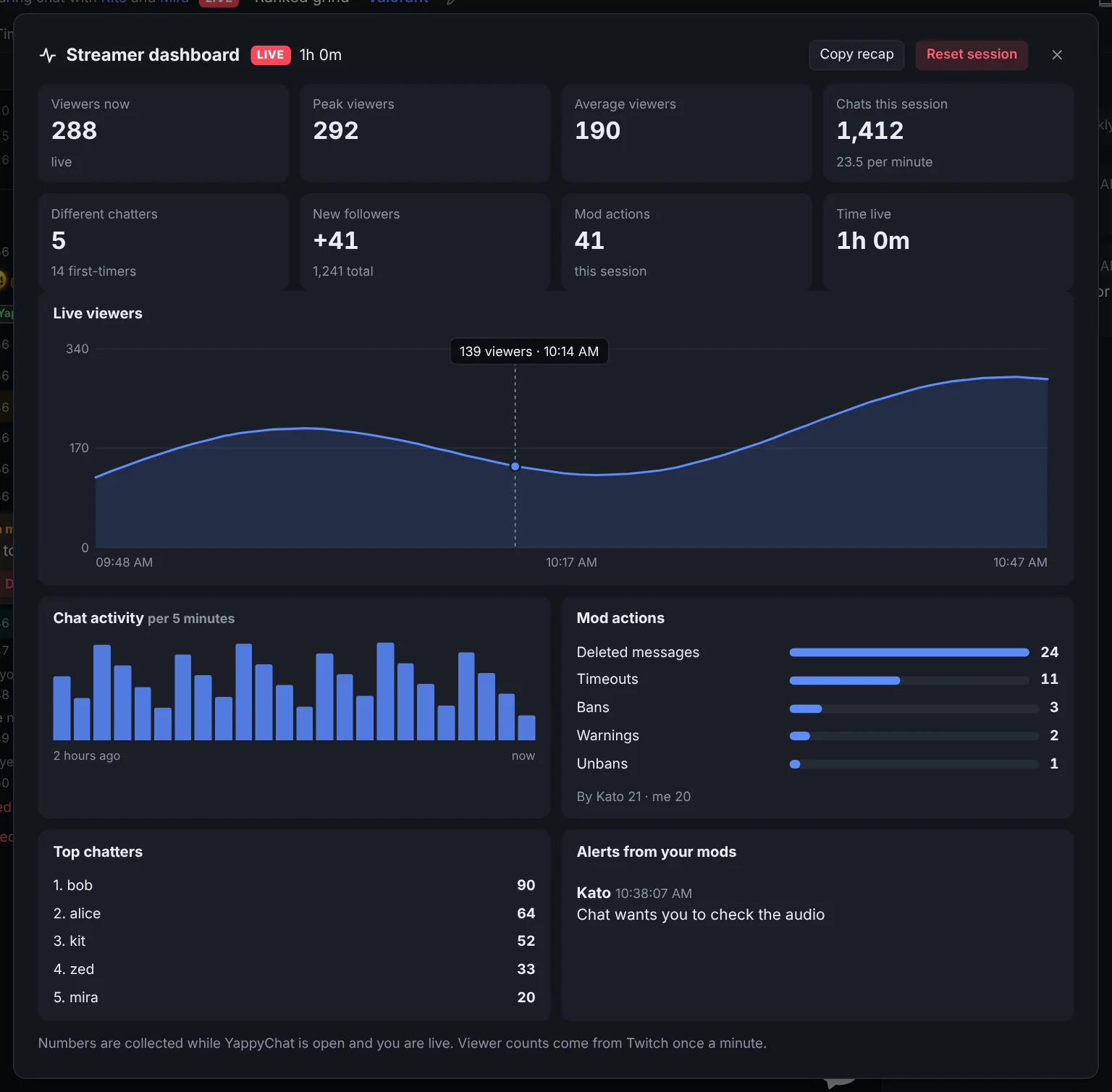
Not live yet? The empty dashboard has a Preview with sample numbers button that fills it with made-up figures, marked SAMPLE, so you can see what everything looks like before your first stream.
- Tiles: viewers now, peak and average, chats this session (and per minute), different chatters and first-timers, new followers, mod actions and time live.
- Live viewers over time, sampled once a minute while you are live.
- Chat activity per five minutes, so you can see where chat took off.
- Mod actions with a count of each kind (bans, timeouts, deleted messages, warnings, unbans) and who did them.
- Top chatters and alerts from your mods from this session.
- Copy recap puts a plain-text summary on your clipboard for your notes or Discord. Reset session starts fresh.
Alerts from your mods
A moderator types /alert Your game audio is peaking, turn it down! in your chat window. On your screen YappyChat flashes in the taskbar, Yappy buzzes, and a large message appears, so you see it even mid-game. Got it dismisses it and Whisper back opens a reply.
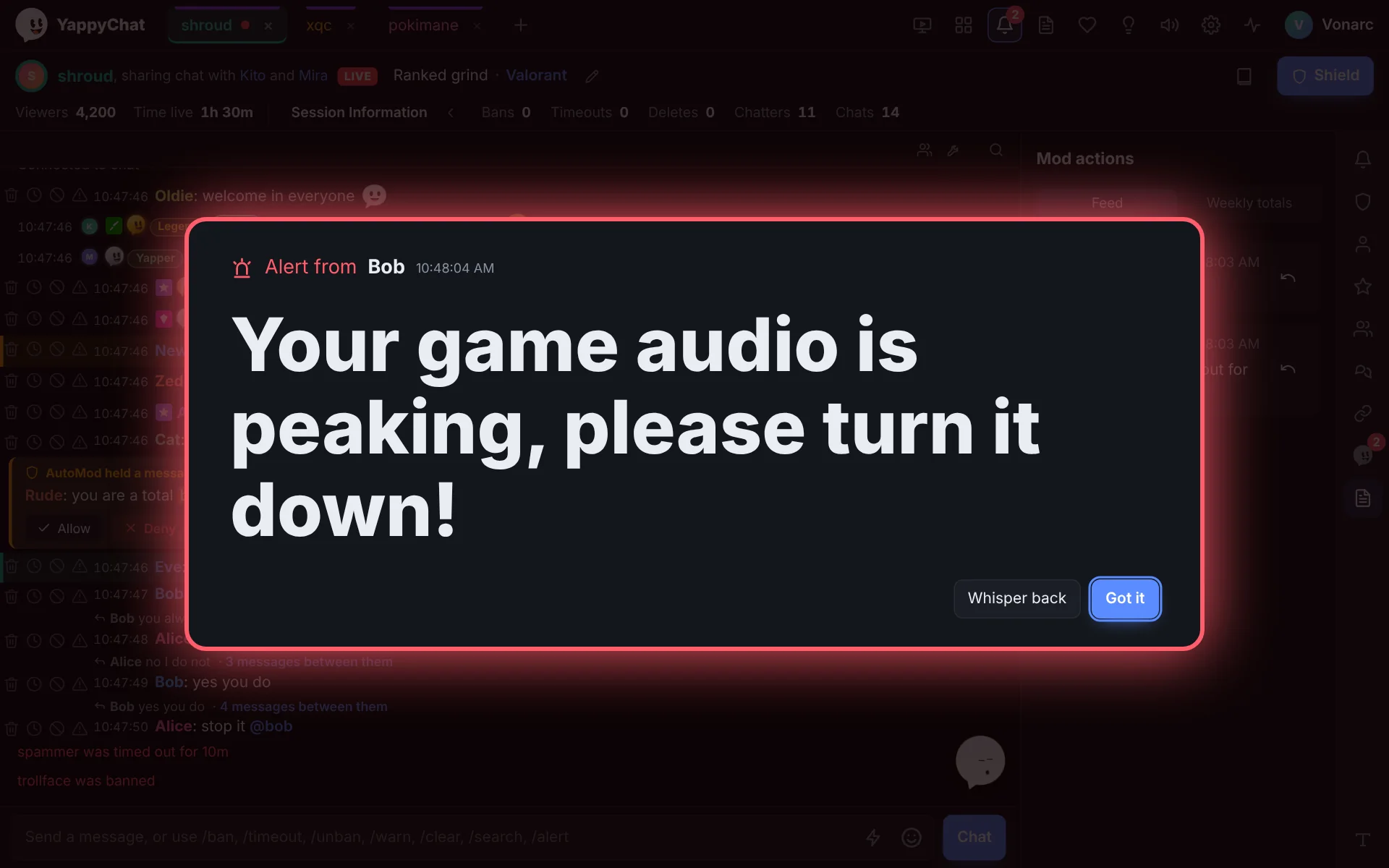
- Only your moderators can trigger it. YappyChat checks the sender really is a moderator of your channel before showing anything; from anyone else it is just an ordinary whisper.
- How it travels: as a Twitch whisper. So Twitch's whisper rules apply: the moderator's account needs a verified phone number, and you must be able to receive whispers. Both of you need YappyChat; if the moderator does not use it, the alert arrives as a normal whisper.
- Turn it off in Settings > Security > Accept /alert messages from my moderators. Alerts are also listed in your dashboard.
Streamer mode
Ctrl+Shift+S toggles streamer mode: the activity panel and chatter details are blurred, sounds are muted and Yappy's notices and desktop notifications are hidden. For screen sharing, also see Hide YappyChat from screen sharing.
5. Themes
Everything here is in Settings > Appearance.
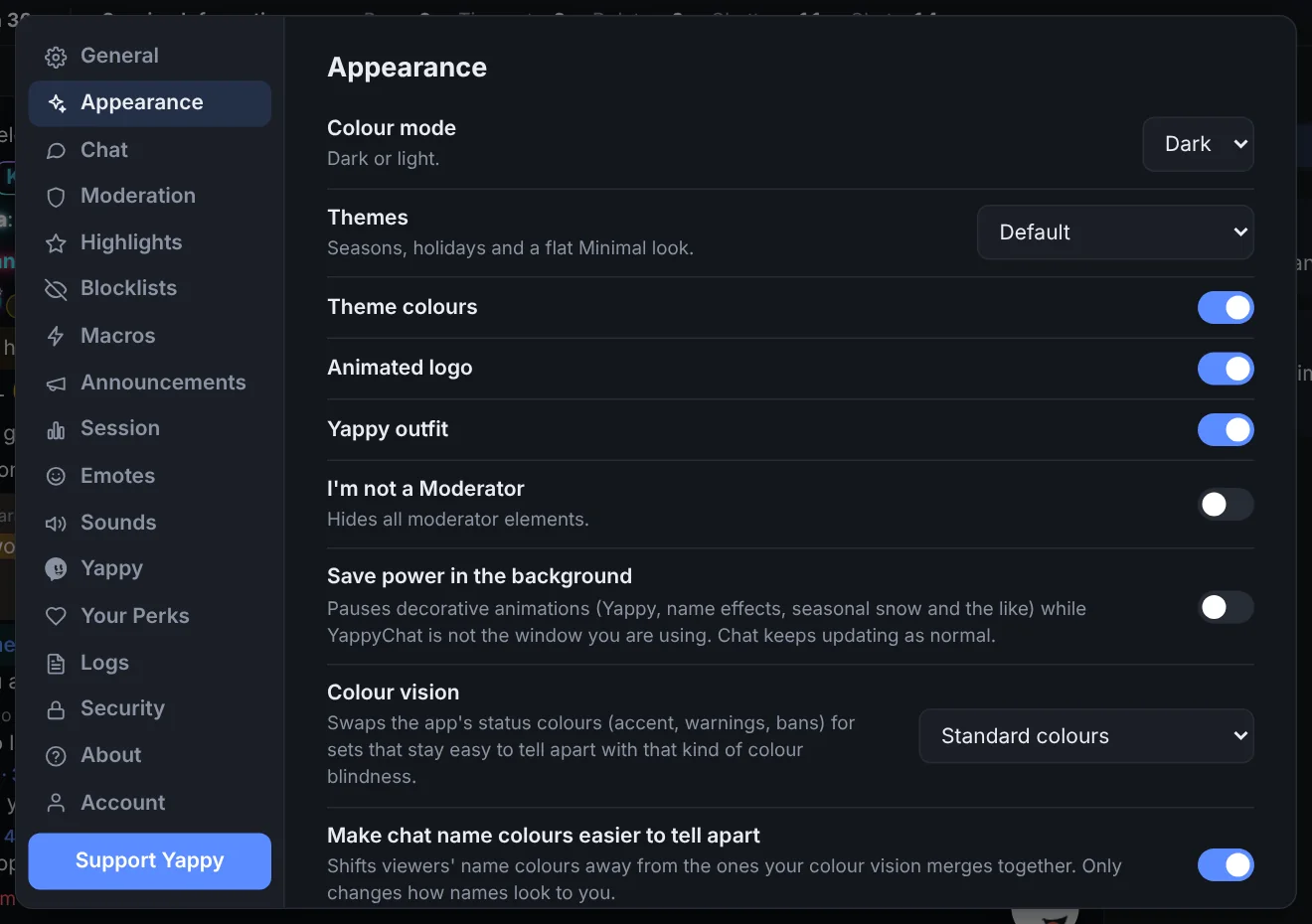
The Themes menu in Settings > Appearance holds every look in one list (light or dark is the separate Colour mode setting). It offers:
- Automatic (by date): the default. Holidays switch on by themselves around the day and otherwise you get the Default look.
- Default: the original look all year.
- Autumn (Fall), Winter, Summer and Spring: each recolours the app and dresses Yappy for the season, with its own touches. They are yours to pick any time of year.
- Minimal (flat and fast): removes most of the flair for lower-spec computers. Square corners, no shadows, glows or background effects, no animations, no outfits on Yappy. Everything works exactly the same, it just does less drawing.
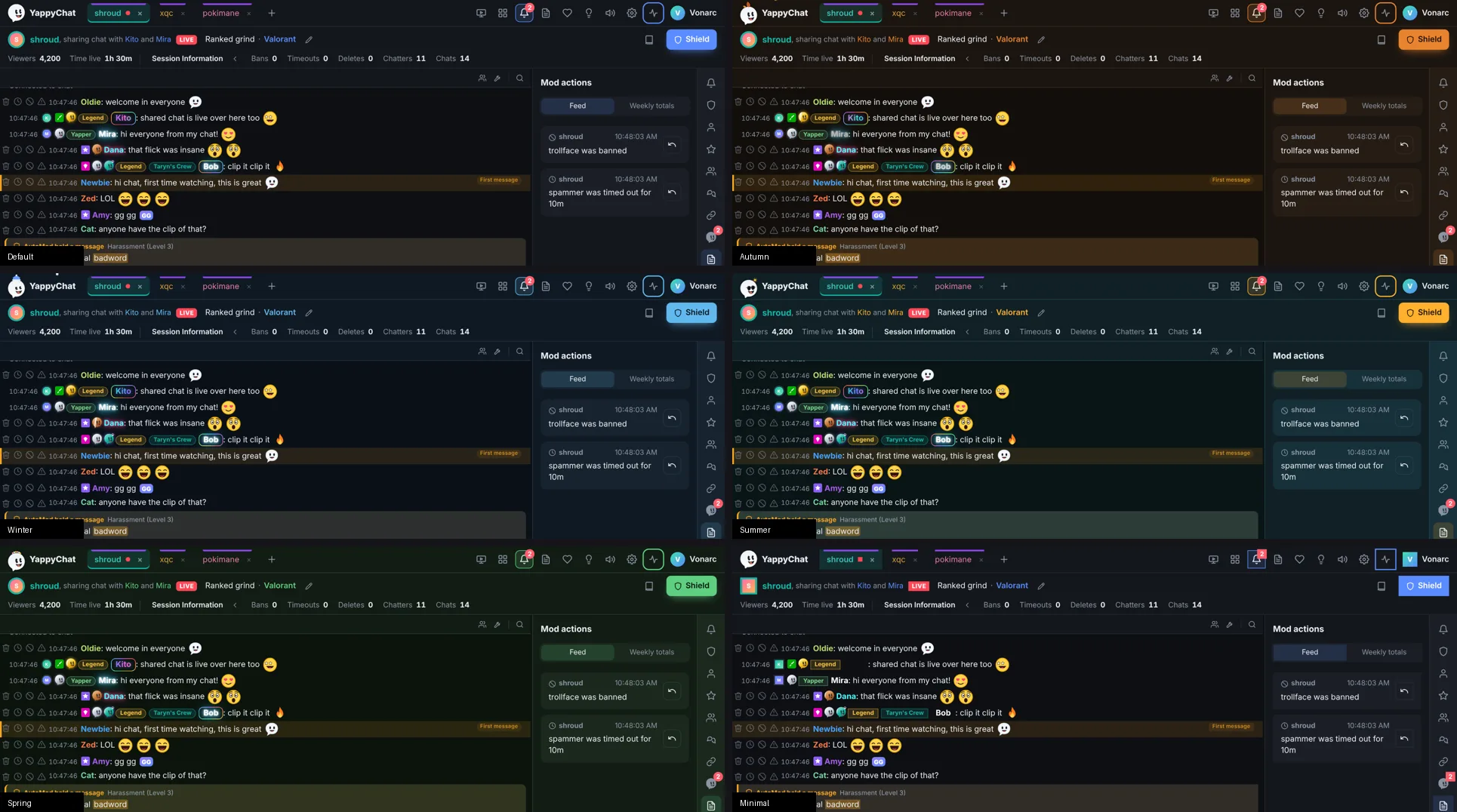
Light or dark still applies on top of any theme, and the title bar at the top of the window follows your theme and mode.
Holiday themes
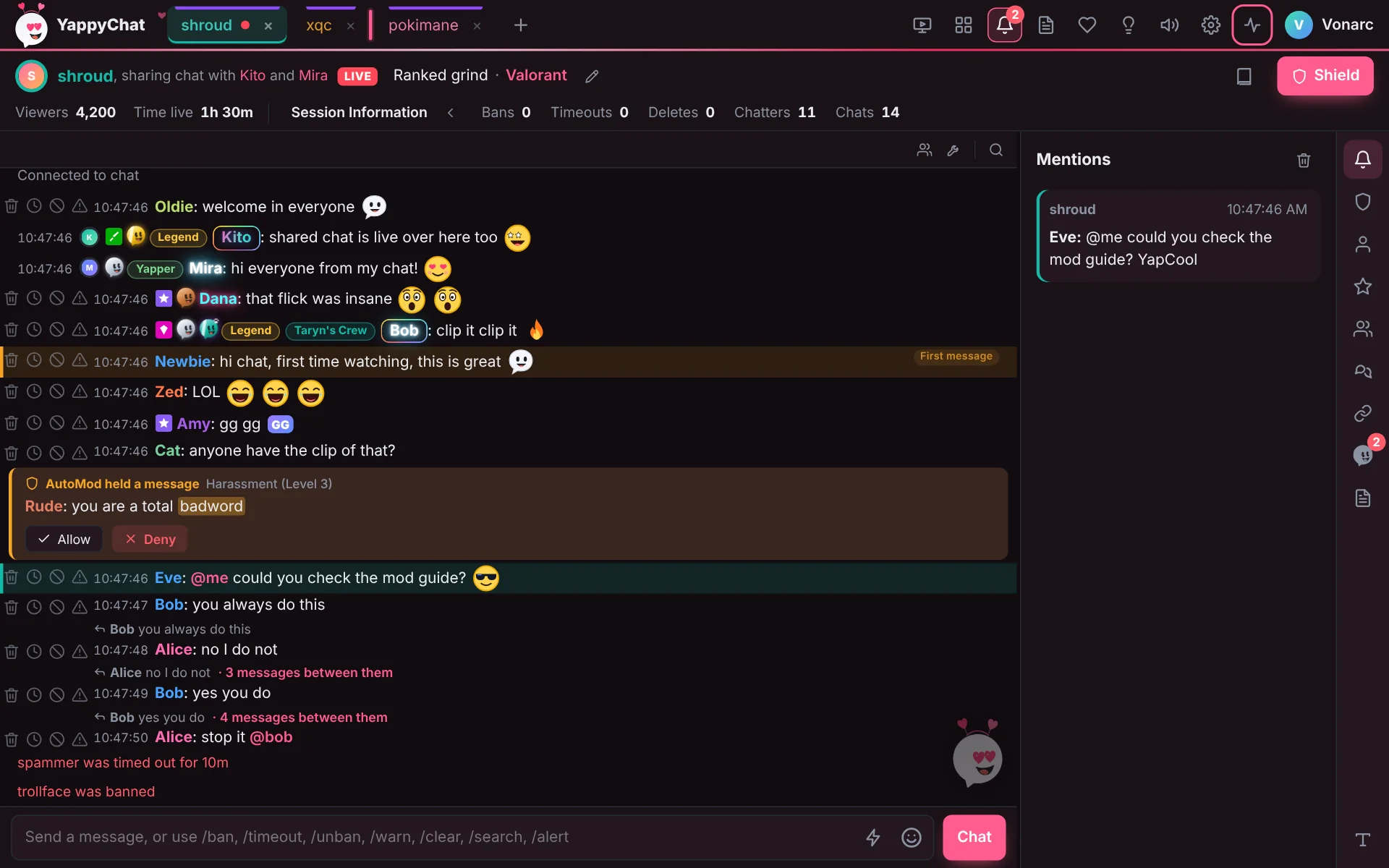
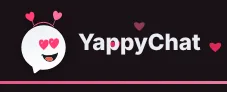
Halloween, Christmas, New Year and Valentine's Day switch on by themselves around the day (6 to 15 February for Valentine's), or you can pick one any time in the Themes menu. Valentine's gives the app pink colours and floating hearts, and Yappy gets heart eyes and a little heart headband. Supporters can also buy an animated Cupid's bow skin for Yappy.
Saving power
Settings > Appearance > Save power in the background pauses animations when the window is hidden or unfocused. It never pauses the stream.
Colour-vision modes
Choose Protanopia (red-weak), Deuteranopia (green-weak) or Tritanopia (blue-weak) under Colour vision. The app's status colours (the accent, warnings, bans and so on) change to a palette that stays easy to tell apart for that kind of colour vision. Two more switches go with it:
- Make chat name colours easier to tell apart shifts viewers' name colours away from the ones your vision merges together. It only changes how names look to you.
- Add symbols to status colours adds a small symbol to first-message, timed-out and banned labels, and underlines links, so nothing depends on colour alone.
I'm not a Moderator
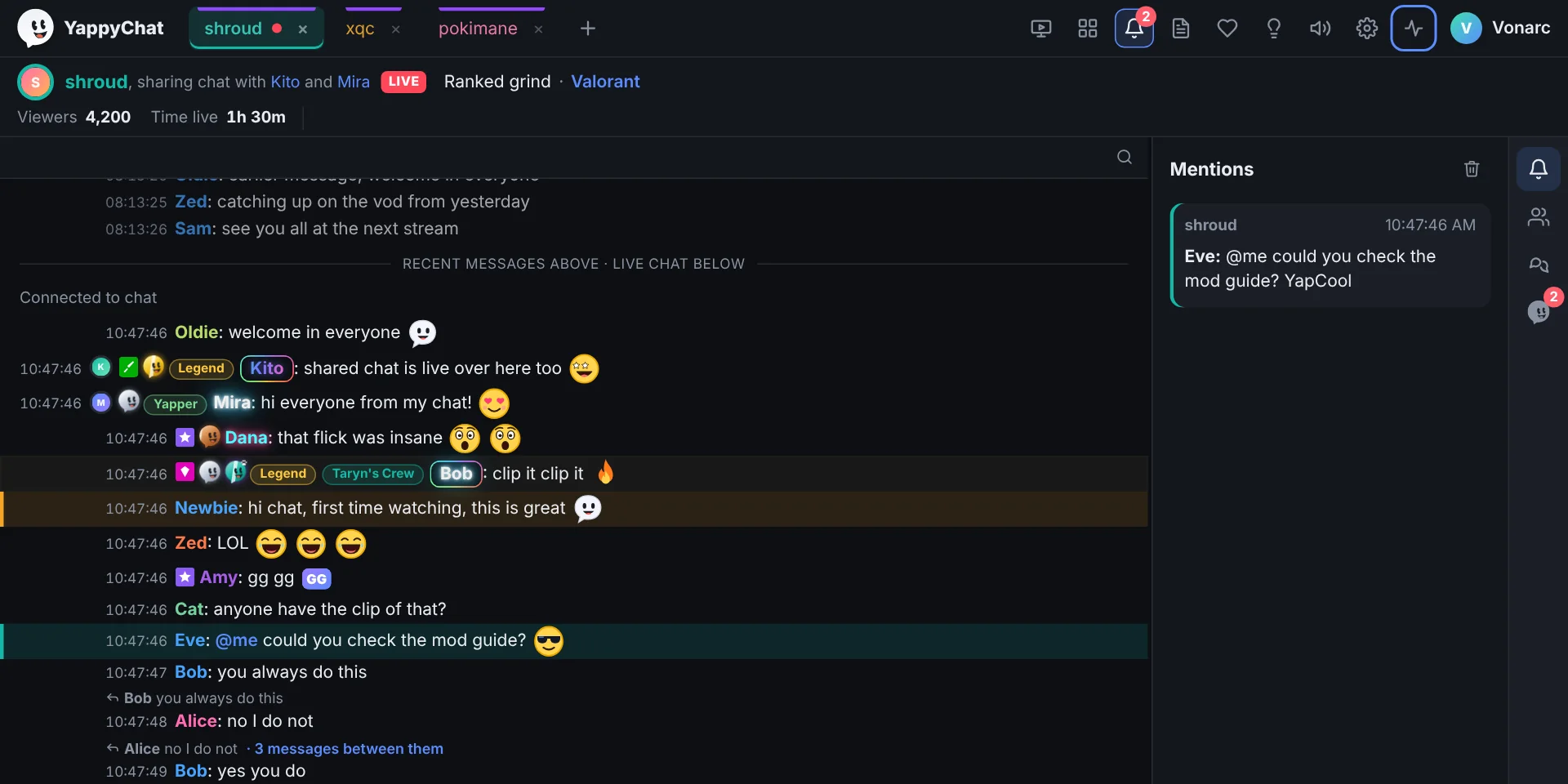
Not everyone who uses YappyChat moderates. Turn on Settings > Appearance > I'm not a Moderator and everything that is only for moderating disappears, leaving a clean chat client:
- message buttons (delete, timeout, ban, warn), pinning and the tool icons in the chat header
- the AutoMod, Unbans, Firsts, Links and Mod actions tabs
- notes and rules, Session Information and the Shield menu
- the matching sections in Settings
Chat, replying, emotes, whispers, mentions, the stream window and your themes all stay. You can switch it off again at any time and nothing is lost.
Yappy
Yappy is the mascot in the corner. He suggests actions when he notices patterns: repeated deletions of the same word, a spam wave, a possible raid. He also tells you about whispers and, when you log in, how many of your channels are live.
- Click him to open his tab in the activity panel, with everything he has said.
- He buzzes when a notification arrives (a highlight, a first-timer, AutoMod, an alert): he shakes and goes cross-eyed so you notice even if you are not looking.
- He sits beside the Chat button, as tall as the button. Drag him anywhere you like and the message bar takes the full width; Reset position in Settings > Yappy puts him back. His speech bubbles always appear at the bottom middle of the window.
In Settings > Yappy: Show Yappy shows or hides the mascot; Which notices to show switches off individual kinds (going live, whispers, raids, ban-list matches, spam, Shield tips, word suggestions, tip reminders); Yappy notices keeps notices as small pop-ups when Yappy is hidden, or turns all of them off; Suggestions turns pattern suggestions off entirely.
Sounds
The speaker button next to Settings changes the volume of all YappyChat sounds at once. In Settings > Sounds pick a tone for each event (highlight, watch-list chatter, someone going live, AutoMod, Yappy, first-timer, whisper, alert) or choose your own file: an mp3, wav or ogg up to 500 KB and 5 seconds.
Stream window
The stream button opens Twitch's own player, unmodified and following Twitch's embed rules: it is always at least 400x300 and nothing is drawn over it. It uses the same Twitch login as chat, so your subscriptions and Turbo apply.
- Nothing pauses it by accident. Opening settings, a dialog or another window does not pause the stream. Only Twitch's own pause button (or its keyboard shortcut) does. Dialogs open in the middle of the window; if one would land on the stream, the stream window slides out of the way while it is open instead of being covered or paused, and returns when you close it.
- Drag its header to a screen edge to snap it beside, above or below your chat, or drag it away to float it.
- The stream follows the active tab. The Follow active tab drop-down fixes it to one stream. Stream settings are in Settings > General.
- Use the volume control on the stream itself; the speaker button sets the volume of YappyChat's own sounds.
Snapping. Drag the stream window (or a chat) towards the edge of the chat area and a highlight shows where it will dock. This works with a single chat too, so you can put your chat above, below, left or right of the stream. GIFs sent in chat, pinned messages and drops show in the line and in a strip above it, each with an X to dismiss; Settings > Chat has a switch for each.
Several streams
Press the + next to the channel menu to add another stream, up to four. From two streams on, the streams sit along the top of the chat area and your chats below, and streams plus chats never go over six panes: 4 streams and 2 chats, 3 streams and 3 chats, 2 streams and 4 chats. Your saved split view is kept, so closing a stream gives the chats their room back. Each stream has its own channel menu and a × to close it; closing the first one makes the next one the main stream.
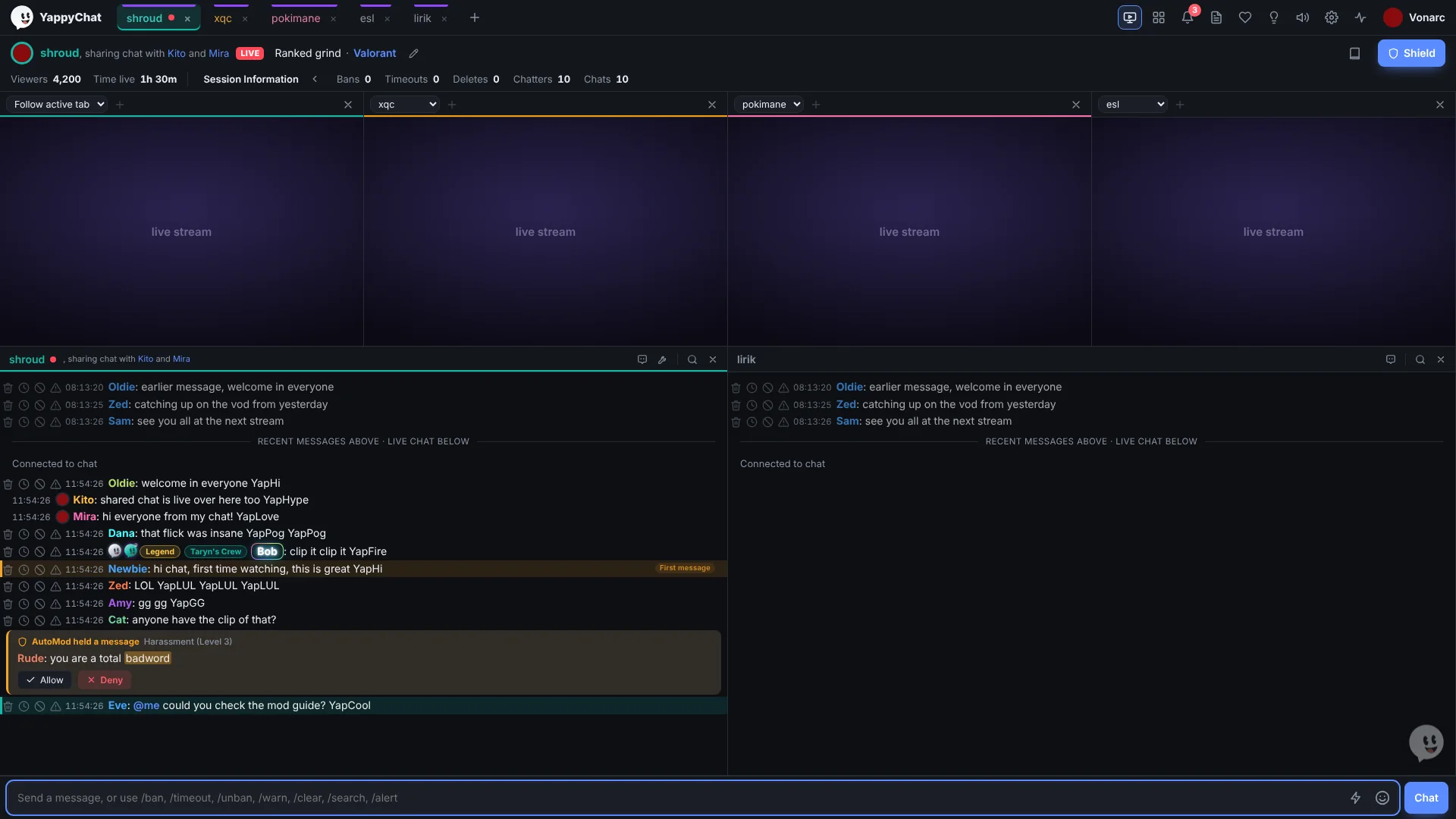
- Twitch's rules are kept for every stream. Each one is Twitch's own player, unmodified, with its video at least 400x300 and nothing of ours drawn over it. If your window is too small to give every stream that much room, YappyChat hides the streams and tells you instead of shrinking them; make the window bigger (or close a stream) and they come back by themselves. As a guide, four streams need roughly a full-HD window.
- New streams start muted, so several do not all play sound at once. Use each stream's own volume control.
- If a dialog would land on a stream, that stream is hidden for as long as it is open and comes back when you close it; the other streams stay visible and undimmed.
- Streams cannot be dragged around or snapped while there are several; they live in the grid. Back at one stream, it returns to its own floating or snapped window.
6. Security
YappyChat keeps your Twitch login encrypted by Windows for your user account only, never sends your chat anywhere, and asks Twitch for as little as it can. Settings > Security adds more:
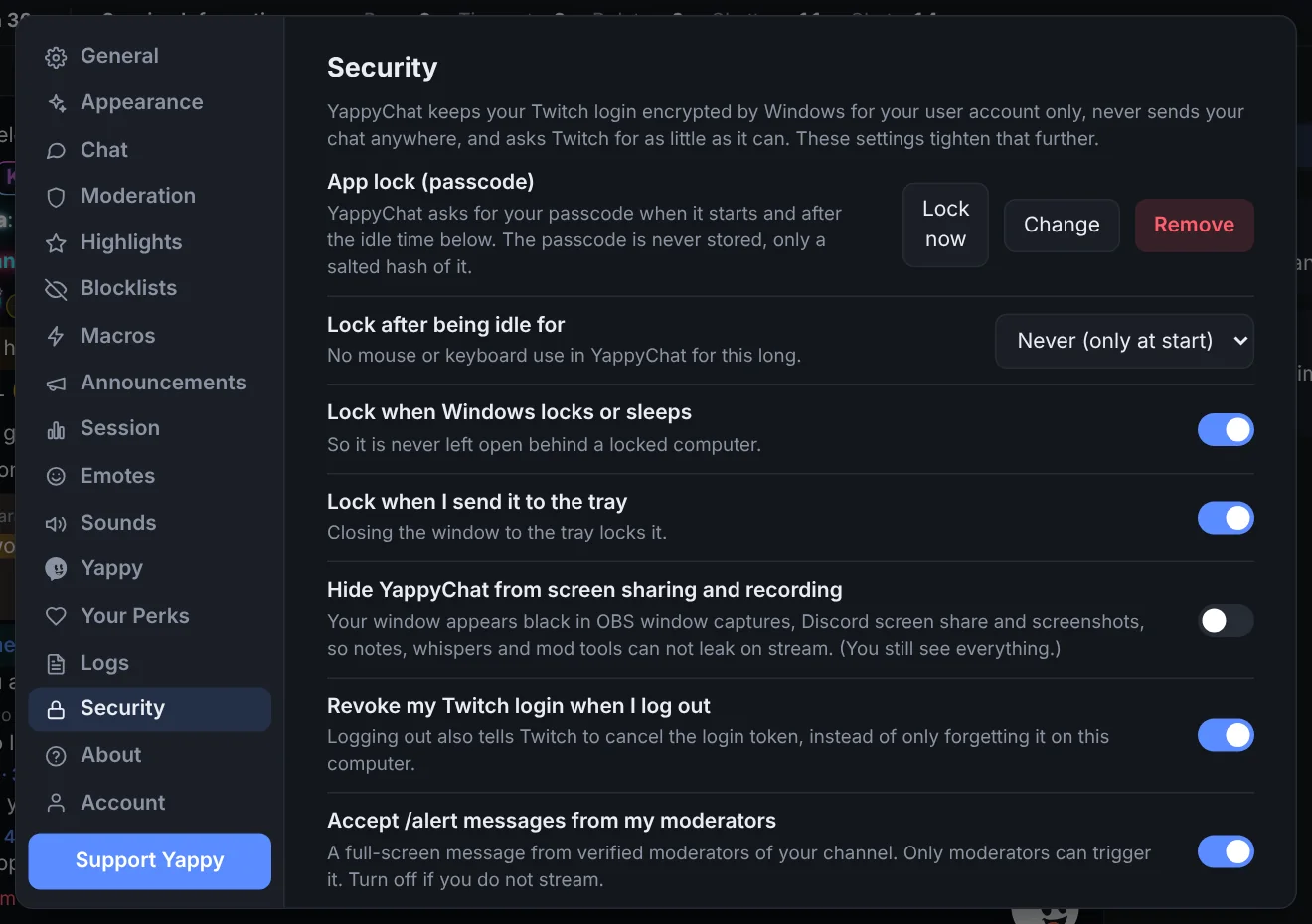
| Setting | What it does |
|---|---|
| App lock (passcode) | Asks for a passcode when YappyChat starts and after the idle time you choose (5 minutes to 1 hour), so nobody can read your chats, notes and whispers or moderate as you if you walk away. Only a salted, slowed-down hash of the passcode is kept, never the passcode itself, and repeated wrong tries make you wait. Lock now locks it straight away. If you forget it, the lock screen offers to log you out, which removes the lock. |
| Hide from screen sharing and recording | Your window shows as black in OBS window captures, Discord screen share and screenshots, so notes, whispers and mod tools can not leak on stream. You still see everything. |
| Revoke my Twitch login when I log out | Logging out also tells Twitch to cancel the login token (on by default). |
| Accept /alert messages | Turn off the full-window alerts if you do not stream. |
| Lock when Windows locks or sleeps, or when sent to the tray | Once a passcode is set, YappyChat also locks itself when Windows locks or goes to sleep, and when you close the window to the tray (both on by default). |
The list of everything YappyChat can do on your Twitch account (Granted or Not granted, with a plain reason for each, plus a button to review the apps connected to your Twitch account) is in Settings > About, along with Reset window layout.
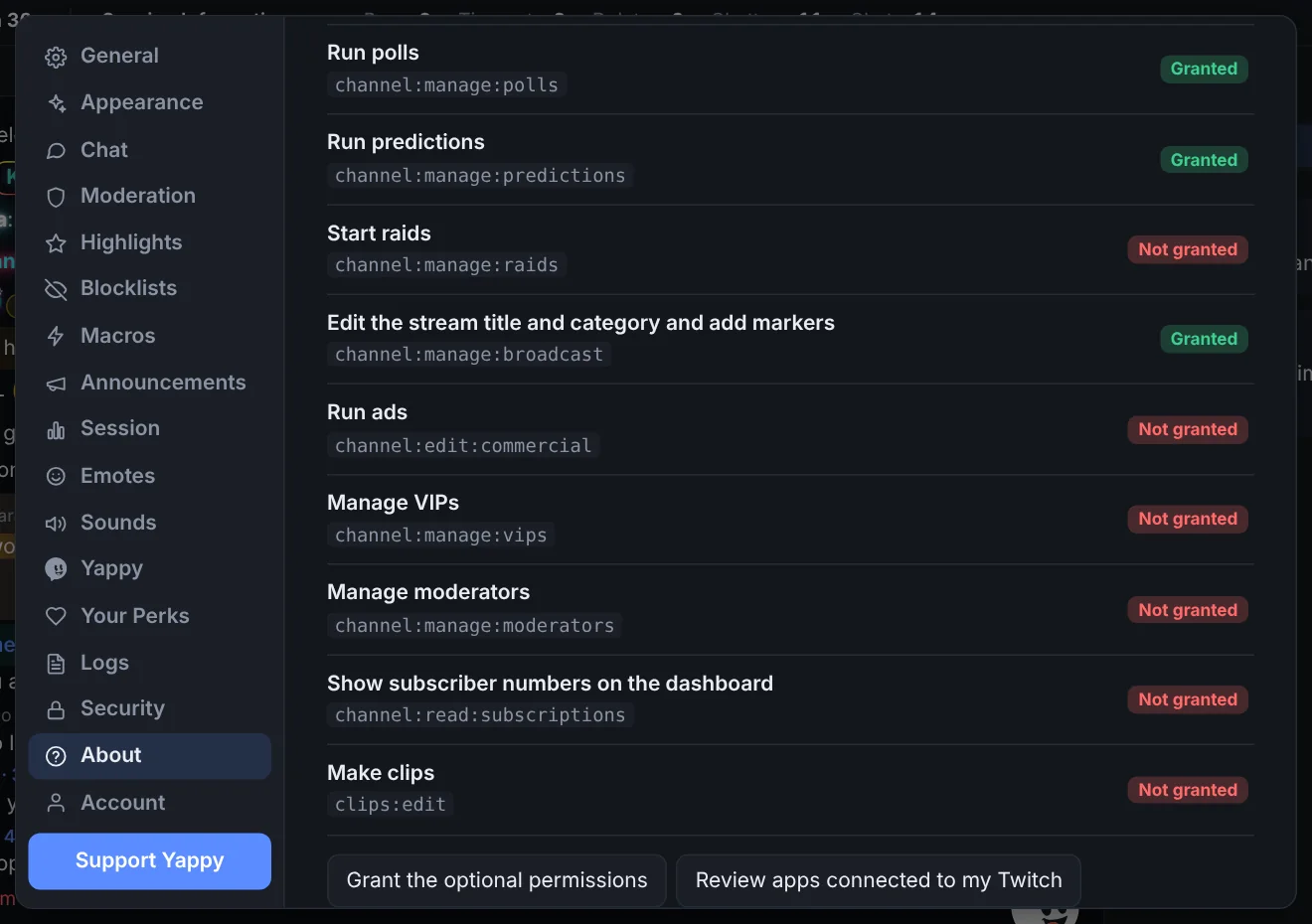
Behind the scenes, YappyChat also limits its own web requests to the handful of addresses it needs and denies browser permissions such as camera and microphone. See the privacy page.
Startup, tray and updates
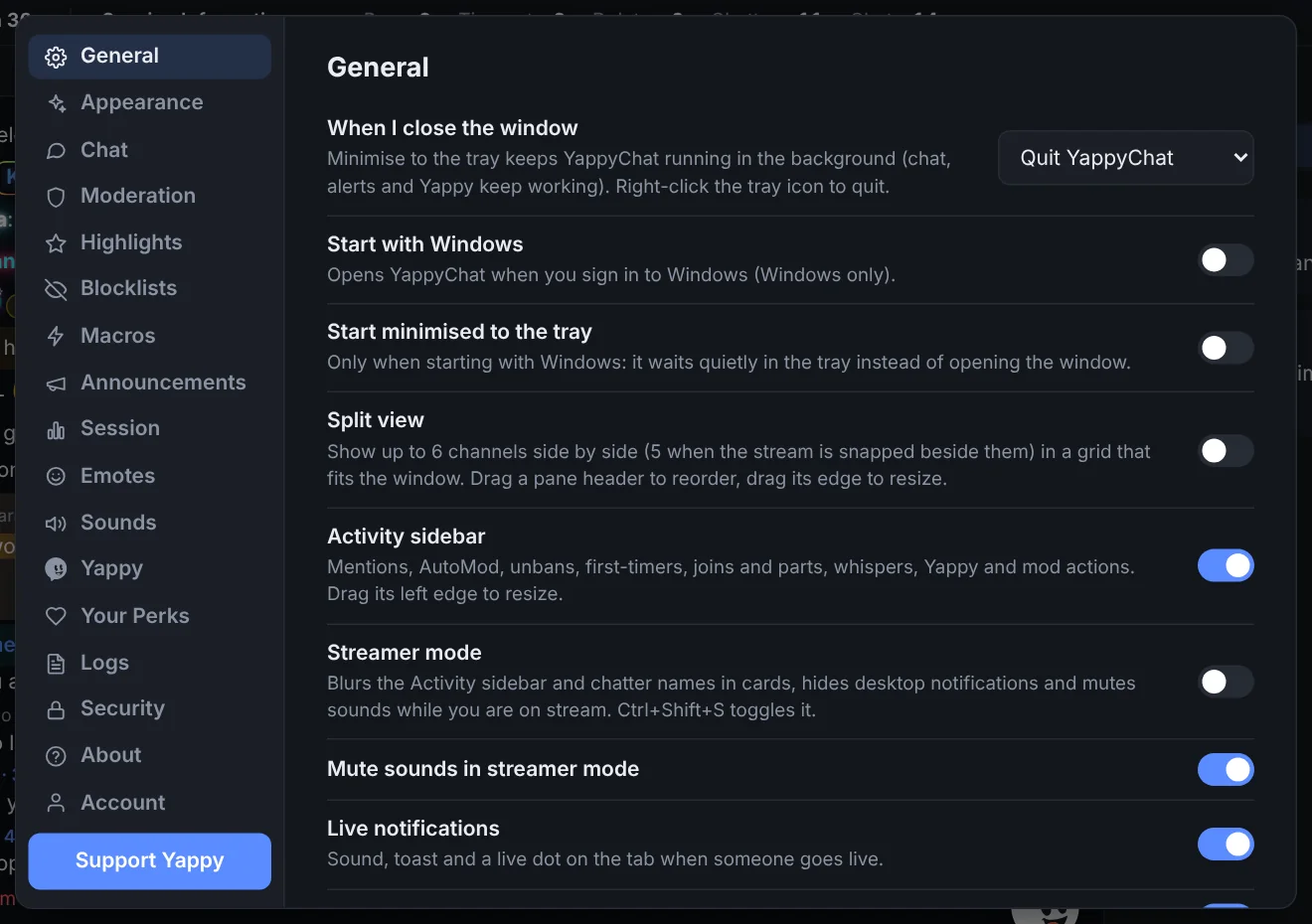
In Settings > General:
- Start with Windows opens YappyChat when you sign in to your computer. Add Start minimised to the tray and it waits quietly in the tray instead of opening the window.
- When I close the window can be set to Minimise to the tray. YappyChat then keeps running; click the tray icon to bring it back or right-click it to quit.
- YappyChat checks for updates every few hours and offers a restart when one is ready.
7. Supporter perks
YappyChat is free. Supporters get a Yappy-shaped badge (white, bronze, silver or gold by the total spent on perks), name effects, name plates, titles, entrance effects, animated Yappy skins, sound packs and seasonal packs. See the prices and how to get them. You tick what you want in a cart (the heart button in the app opens it already signed in), sign in with Twitch, and pay by card, Apple Pay, Google Pay or PayPal. Your perks switch on by themselves as soon as the payment is confirmed; press Check for new perks in Settings > Your Perks if they are not there yet. Refunds within 14 days are covered on the privacy page. Choose what you wear in Settings > Your Perks; everyone using YappyChat sees your choices within a few minutes.
Hover to learn
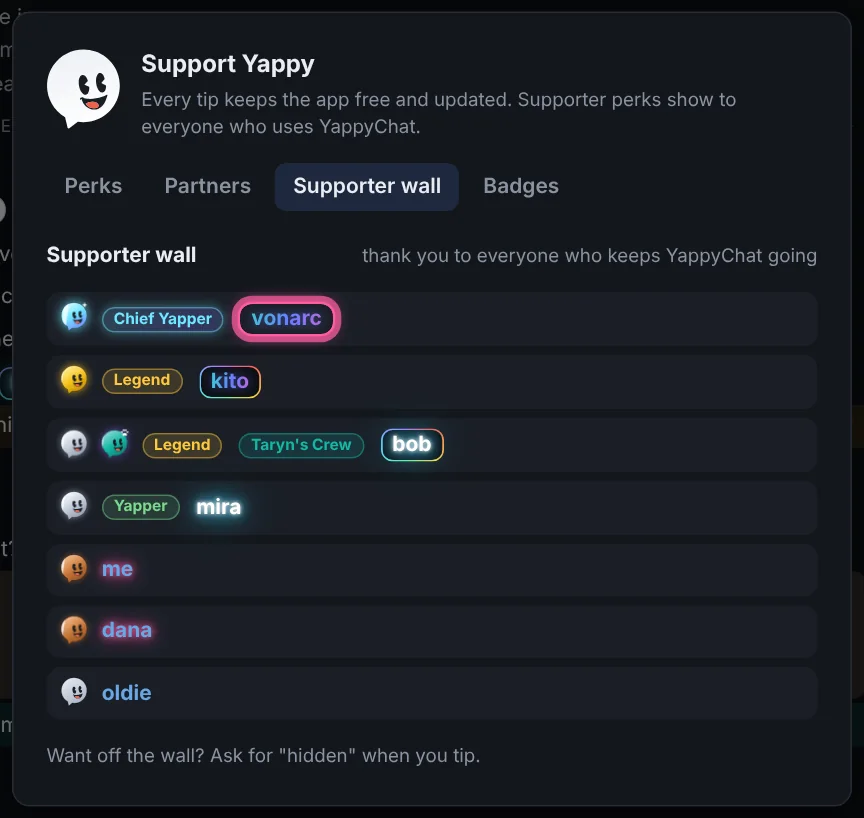
Hover a supporter's name, badge or title to see what it is, how it was earned, and what it costs, so you can get one too. Click it to open the shop. On the website's supporter wall, cards from Bronze upwards shine.
Partner streamers
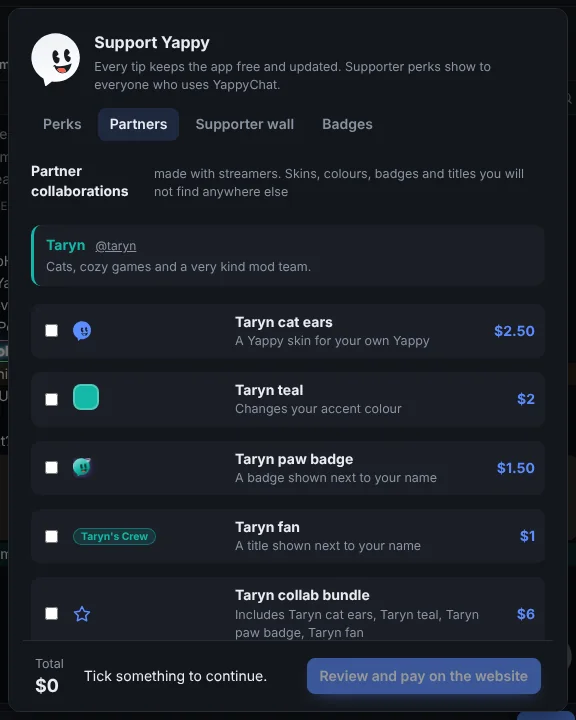
Some streamers have collections made with them: a Yappy skin, a colour theme, a badge and a title, plus a bundle. They live on the Partners tab of the shop, each with the streamer's name and a link to add their channel. Partner badges and titles show to everyone, with a tooltip naming the streamer. Streamers who want a collection can find out more on the Get involved page.
Troubleshooting
"Session expired" or I keep being asked to log in
Log in again from the login screen. If it happens every time, update to the latest version.
A tool says it needs one more permission
That is expected the first time. Press Grant permission; you sign in to Twitch once and the tool opens. Settings > Security shows what is granted.
I cannot see the poll and prediction buttons
Twitch only lets the channel owner run these through apps, so the buttons (and raids, ads, markers and the title editor) only appear in your own channel. In someone else's channel, use Twitch's Mod View.
Mod actions or AutoMod are empty
You must be a moderator in the channel, and you need the latest permissions: log out and log in again.
Whispers or /alert do not arrive or cannot be sent
Log in again for the whisper permissions. To send, your Twitch account needs a verified phone number. For /alert the streamer must be using YappyChat and must not have turned alerts off.
A window is hidden, off the edge or in a strange place
Open Settings > About > Window layout > Reset. It closes and re-centres the stream window, turns split view off and puts the panels back to their default sizes. (This also happens by itself the first time YappyChat runs, so the welcome guide is never hidden behind a stream window.)
I do not see the mod buttons, tabs or tool icons
Check Settings > Appearance > I'm not a Moderator is off, and that you actually moderate that channel.
YappyChat feels slow on my computer
Choose the Minimal theme, turn on Save power in the background, and shorten Keep Firsts and Joins for in Settings > Chat.
Emotes show as grey text
Open Settings > Emotes, press Reload emotes and Test emote images, and check your internet connection.
Recent messages are empty
The channel may be brand new to the recent-messages service, or you may have it switched off in Settings > Chat.
I forgot my passcode
On the lock screen choose Forgot it? Log out. That removes the lock and logs you out of Twitch; log in again to continue.
Where are my logs?
Chat logs are saved per channel per day in %APPDATA%\YappyChat\logs. Use the file button in the top bar to open the folder.
Shortcuts
| Keys | Action |
|---|---|
| Ctrl+K | Jump to a channel |
| Ctrl+F | Search the chat you are in |
| Ctrl+Shift+F | Search all channels |
| Ctrl+Shift+S | Streamer mode |
| Ctrl+Shift+P | Command palette |
| Tab | Complete an emote or @name |
| ↑ ↓ | In the message box: your last 10 messages |
| Esc | Close a panel or window |
| D T B W | Delete, timeout, ban, warn (hover hotkeys) |
/search · /alert | Search this chat · send the streamer an alert |
FAQ
Is YappyChat official?
No. It is an independent app that uses Twitch's public APIs. It is not affiliated with or endorsed by Twitch.
Is it safe?
Your Twitch token stays on your computer, encrypted, and you can add a passcode lock. The only server YappyChat talks to besides Twitch, the emote services and the recent-messages service is the YappyChat supporter server, which receives your token only to confirm who you are when you change your perks (it does not keep it). See Security and the privacy page.
Why can I not start a poll or prediction as a moderator?
Twitch's own rules: only the channel owner can start them through an app, so YappyChat shows those buttons only in your own channel. See Polls, predictions, user list and more.
Does it work with Kick or YouTube?
Not yet. Both are coming soon. Tabs already have a coloured line to show which service a channel is on, ready for them.
Does it work on Mac or Linux?
Currently Windows only.
I have a suggestion, or something is broken
Use the lightbulb button in the app's top bar, or write to us on the contact page.